

Let's be honest—if your WordPress site feels sluggish, the culprit is almost always hiding in your media library. We’ve all seen it: gorgeous, high-resolution photos that look incredible but bring page load times to a screeching halt.
Image optimization for WordPress is the art and science of shrinking your image file sizes without turning them into a pixelated mess. Done right, it’s one of the single most effective changes you can make to speed up your site, improve user experience, and get a nice nod from Google.
Why Image Optimization Is Your Secret Weapon
In a world where attention spans are shrinking by the second, even a one-second delay can be enough to make a potential customer click away for good. Every unoptimized image you upload adds to your page's total weight, forcing visitors to wait.
This isn't just a technical tweak; it's a critical business move. Faster load times directly feed into better Core Web Vitals, which are key signals Google uses for ranking. When you shrink your images, you’re basically telling search engines that your site provides a great user experience. And they tend to reward that.
The connection between page speed and user behavior is undeniable. A faster website keeps people around longer, which lowers your bounce rate. This increased engagement sends positive signals back to Google, helping you climb the search rankings. You can read more about why speed is so critical in our guide on the importance of website performance.
How Image Optimization Directly Impacts Your Site
To put it in perspective, let’s break down the clear business case for prioritizing this. It’s not just about making things faster; it’s about making your entire online presence stronger.
| Metric | Impact of Optimization | Why It Matters to You |
|---|---|---|
| Page Load Speed | Drastically reduces load times. | Faster pages lead to lower bounce rates and better user experience. |
| User Engagement | Visitors stay longer and view more pages. | Higher engagement signals quality to search engines, boosting your SEO. |
| Conversion Rates | A snappy site encourages users to take action. | A 1-second delay can drop conversions, so speed directly impacts sales and leads. |
| SEO Rankings | Improves Core Web Vitals, a direct ranking factor. | Better rankings mean more organic traffic and visibility. |
| Hosting Costs | Uses less bandwidth and storage space. | Saves you money on your hosting plan, especially as your site grows. |
The bottom line? Every metric that matters to your business gets a lift when you get your images under control.
And the need for this has never been greater. Images make up a huge chunk of a typical webpage's total size. Recent data shows desktop web pages average 967.5 KB of image data, while mobile pages come in at 866.3 KB. That's a massive increase over the last five years, highlighting just how crucial efficient optimization has become. You can dive deeper into these image statistics and their impact.
By focusing on image optimization, you are directly investing in your website's speed, SEO health, and ability to convert visitors into customers. It's one of the few optimizations that delivers visible and measurable results across the board.
Ultimately, mastering image optimization isn't about chasing a perfect 100/100 on a speed test. It’s about building a better, faster, and more effective website for the people who matter most: your audience.
The core pillars are refreshingly simple:
- Smart Compression: Use tools that intelligently strip out unnecessary data from your image files without making them look bad.
- Correct Sizing: Never upload a 2000px wide image for a space that’s only 500px. Match the dimensions to the container.
- Modern Formats: Switch to next-gen formats like WebP, which offer far better compression and quality than old-school JPEGs and PNGs.
Tackling your images is a high-return activity that pays dividends in user satisfaction and search visibility, making it well worth the effort.
Choosing the Right Image Format and Size
Before we even touch plugins or automation, let's talk about the fundamentals. This is where you get the biggest performance wins with the least amount of technical fuss. Honestly, choosing the right image format and resizing your images before you upload them are the two most powerful things you can do.
Think of it this way: uploading a massive 5MB photo straight from your camera is like trying to mail a car engine when all you needed to send was a spark plug. It’s slow, expensive, and clogs up the whole system. The goal is to match the image to its job on the page, making sure it’s never bigger than it absolutely has to be.
The process is simple. First, pick the right format. Second, resize it to the correct dimensions for its container on your site. Then, and only then, you let compression tools work their magic.
This workflow shows exactly how a clunky, unoptimized file gets turned into a sleek, lightweight asset that helps your site fly.
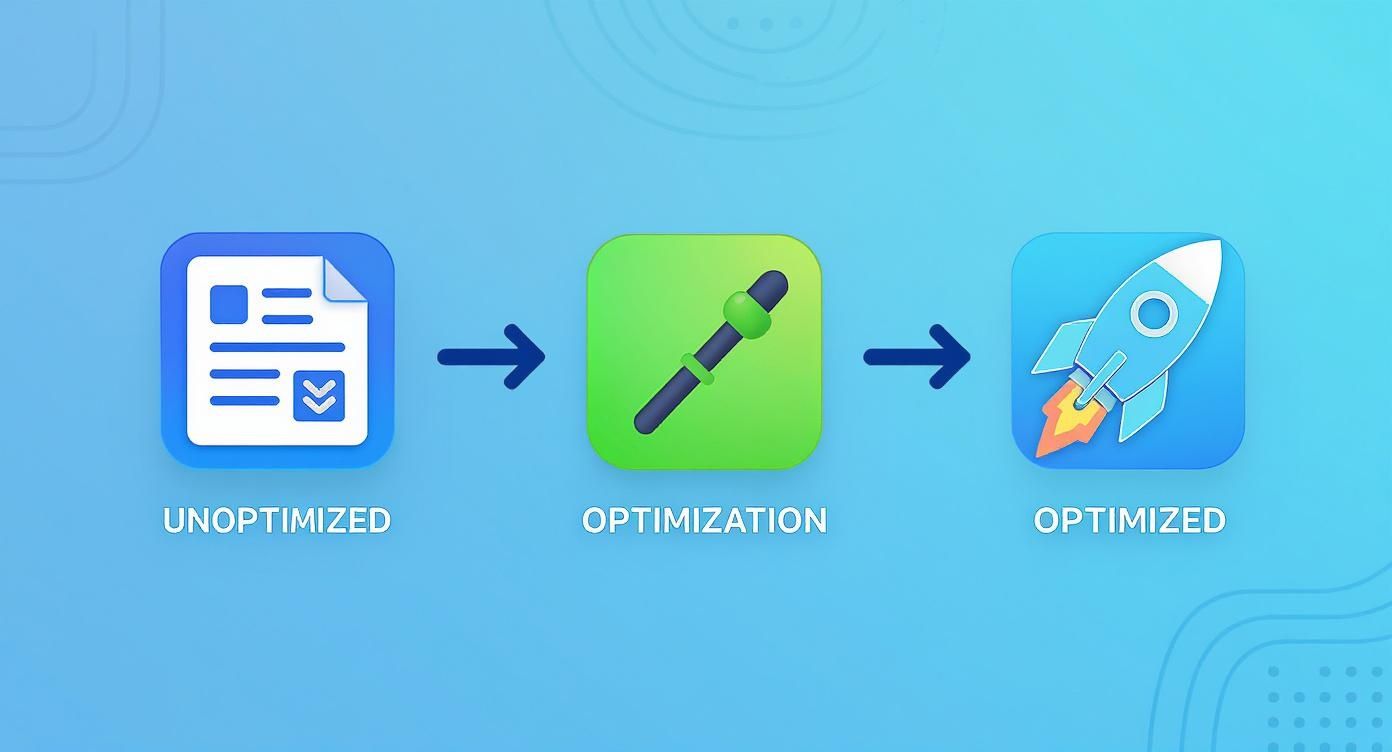
The key takeaway? Optimization isn’t an accident. It’s a deliberate process that transforms sluggish pages into high-performance experiences.
Decoding Image Formats
Not all image files are created equal. The format you choose has a direct impact on both file size and how good the image looks on screen. Here's a no-nonsense breakdown of the formats you'll use most often.
-
JPEG (or JPG): This is your workhorse for almost all photographs. JPEGs are brilliant at handling complex images with millions of colors, like hero images or product shots. They use "lossy" compression, which means they cleverly discard a tiny bit of data to shrink the file size. Most of the time, you won't even notice the quality difference.
-
PNG: Reach for a PNG when you need a transparent background or you’re working with simpler graphics like logos, icons, or illustrations with flat colors. PNGs use "lossless" compression, preserving every pixel of data. This means higher quality but also a much larger file size than a comparable JPEG. A common mistake is saving a detailed photo as a PNG—the file will be enormous.
-
GIF: GIFs are really only good for one thing these days: simple, short animations. They’re limited to just 256 colors, which makes them a terrible choice for photos but perfect for small, looping graphics.
The rule of thumb is dead simple: JPEGs for photos, PNGs for graphics needing transparency, and GIFs for basic animations. Follow this, and you'll solve 90% of your image format headaches right there.
Embracing Next-Gen Formats Like WebP and AVIF
Now, the game is changing thanks to modern formats built specifically for the web. Formats like WebP and AVIF blow the old-school options out of the water with far better compression.
Adopting these has been a huge leap forward. For instance, converting an image to WebP can slash file sizes by 25–90% compared to a JPEG or PNG, often with no visible loss in quality. The newer AVIF format can be even more efficient. If you want to go deeper, you can learn more about the impact of next-gen formats on website performance.
The good news is you don't have to do this manually. Many optimization plugins, like WebP Express, will automatically convert your images to WebP and serve them to compatible browsers, falling back to the original format for older ones. You get all the benefits without the extra work.
Getting Image Dimensions Right
The second piece of the puzzle is right-sizing your images. If your blog's main content area is 800 pixels wide, there is absolutely no reason to upload a 3000-pixel-wide photo for an in-post graphic. All those extra pixels just weigh the page down.
Here’s a quick way to find the right dimensions:
- Inspect Your Site: On your live website, right-click an existing image in the spot you plan to add a new one and choose "Inspect" in your browser's developer tools.
- Find the Container Size: As you hover over the image element in the code, your browser will show you its rendered dimensions. This is the maximum width that image will ever be displayed at.
- Resize Before Uploading: Use a free tool like Preview on a Mac, Paint on Windows, or an online editor like Photopea to resize your image to match those maximum dimensions before you upload it.
By taking these two simple steps—choosing the right format and resizing your images—you've already won half the battle. This prep work gives your optimization plugins a much better starting point, allowing them to maximize their effectiveness and get your site running as fast as possible.
Finding the Best Image Optimization Plugin
Manual optimization is a solid starting point, but let’s be real—it’s not sustainable. To truly master image optimization for WordPress, you need a system that runs on autopilot. Something that compresses new uploads and tackles your existing library without you lifting a finger. This is where a dedicated plugin becomes an essential part of your toolkit.
Choosing the right plugin isn’t just about picking the one with the most downloads. It’s about finding an automated workflow that fits your budget, technical comfort, and performance goals. The top plugins all handle the heavy lifting of compression, WebP conversion, and even CDN integration, but they each have their own personality and approach.
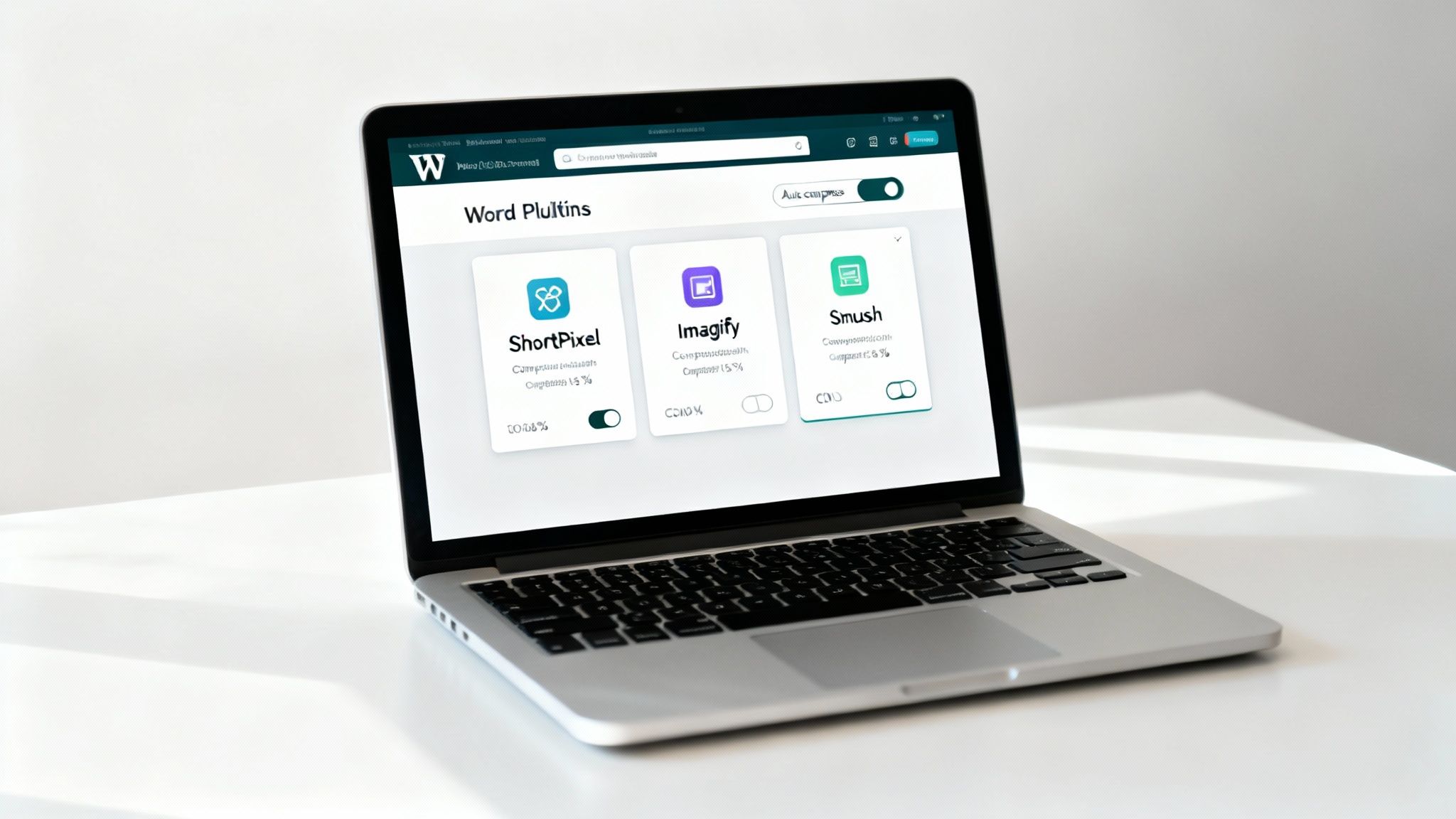
We're going to compare the heavy hitters—ShortPixel, Imagify, and Smush—from a practical standpoint, focusing on what actually matters in day-to-day use.
Key Factors in Choosing a Plugin
Before we get into names, you need to know what features make a real difference. Not all optimization plugins are created equal, and the best choice often comes down to these core elements.
- Compression Methods: Does it offer both lossy and lossless options? Lossy gives you the biggest file size savings with a tiny, often imperceptible, drop in quality. Lossless maintains perfect quality but with smaller savings. A great plugin gives you that choice.
- Bulk Optimization: This is a non-negotiable for existing sites. It lets you process your entire media library in one go, bringing years of unoptimized images up to modern standards.
- WebP Conversion: The ability to automatically create and serve next-gen WebP images is a huge performance win. The plugin should handle this seamlessly, serving WebP to browsers that support it and falling back to the original for others.
- CDN Integration: Some plugins bundle their own image CDN. This offloads your images to a global network, delivering them to visitors much faster, no matter where they are in the world.
- Pricing Model: Do they charge a monthly fee, or can you buy one-time credit packs? The best model for you depends entirely on how often you upload new images.
Understanding these features will help you cut through the marketing fluff and find a tool that genuinely improves your workflow.
Comparing the Top WordPress Image Optimization Plugins
Let's put the most popular options side-by-side to see how they stack up. Each one has a loyal following, but their strengths align with different types of users and websites. This head-to-head analysis should make your decision a whole lot easier.
Comparing the Top WordPress Image Optimization Plugins
| Feature | ShortPixel | Imagify | Smush Pro |
|---|---|---|---|
| Compression Quality | Excellent, with three levels (Lossless, Glossy, Lossy). | Very good, with three levels (Normal, Aggressive, Ultra). | Good, but often less aggressive compression than others. |
| Free Plan | 100 free image credits per month. | 20 MB of free optimizations per month (approx. 200 images). | Unlimited free optimizations for images up to 5MB. |
| Pricing | Flexible, with both monthly plans and one-time credit packs. | Monthly subscription plans based on data usage. | Included in WPMU DEV membership subscription. |
| Image CDN | Yes, included with paid plans. | Yes, included with paid plans. | Yes, included with the Pro membership. |
| Standout Feature | One-time credit packs are great for occasional use. | Very user-friendly interface and integration with WP Rocket. | Generous free plan and part of a larger suite of tools. |
After digging into these options, it’s clear they all bring something valuable to the table. While these plugins focus on images, it's worth noting the broader ecosystem of optimization tools. When looking into various services to assist with image optimization, you might also find relevant resources on the ShortGenius website.
The best plugin for you really depends on your upload habits. For a site with steady, ongoing content, a monthly plan from Imagify might be perfect. For a one-time cleanup of an old site or just sporadic uploads, ShortPixel's credit packs offer incredible value.
A Practical Plugin Setup Example
Let's walk through what a typical setup looks like using a popular choice like ShortPixel, just to show you how straightforward it is. Once you install and activate it, you'll be asked for an API key to connect your site to their optimization servers. Easy enough.
From there, you’ll head to the settings page, where the real magic happens.
- Choose Your Compression Level: You'll see options like "Lossy," "Glossy," and "Lossless." For most websites, Lossy is the way to go—it delivers the best balance of size reduction and visual quality.
- Enable Backups: I always recommend checking the box to "Backup original images." This saves a copy of your original upload, giving you a safety net to restore it anytime.
- Configure Additional Options: This is where you can tell it to create WebP versions, strip EXIF data (like camera settings) to save a few more kilobytes, and automatically resize huge images when they're uploaded.
- Run the Bulk Optimizer: Finally, you’ll find the "Bulk ShortPixel" tab in your Media Library. With one click, the plugin will start scanning and optimizing every single image you've ever uploaded.
This "set it and forget it" approach is exactly why you use a plugin. After this initial setup, every new image you add gets automatically compressed, resized, and converted based on your rules. Your site stays fast and efficient with zero extra effort.
Making Your Images Work for SEO and User Experience
Real image optimization for WordPress isn't just about making files smaller. It’s about turning every image into a hard-working asset for your SEO strategy, helping both search engines and actual humans understand what your content is all about. This part of the process starts before you even hit the "Upload" button.

This is where you connect all the technical tweaks to real-world results like more traffic and better engagement. When you get the SEO and user experience right, your images stop being simple decorations and start pulling their weight.
Nail Your SEO With Smart File Names
One of the easiest, most-missed opportunities for image SEO happens right on your desktop. Search engines crawl everything, and that includes the file names of your images. A descriptive file name gives them a ton of context that a generic one just can't.
So, instead of uploading IMG_8432.jpg, rename it to something that describes the image and, if possible, includes your target keyword. For a local Austin bakery, a picture of a wedding cake should be named austin-bakery-custom-wedding-cake.jpg, not photo1.jpg.
It's a simple habit that gives Google a major clue about the image's content before its crawlers even analyze the pixels. Think of it as a foundational step for strong visual SEO.
Your image file name is the first piece of SEO data a search engine sees. Making it descriptive is a zero-effort way to tell Google exactly what your image is about, giving you an easy win before it's even on your site.
Write Alt Text That Actually Helps People (and Google)
Alternative text, or alt text, is what shows up if an image can't load for some reason. But more importantly, it’s what screen readers announce to visually impaired users, making it a non-negotiable for accessibility. It also happens to be another powerful signal to search engines.
Good alt text is short, descriptive, and works in relevant keywords without sounding robotic. The goal is to paint a clear picture of the image for someone who can't see it.
- Bad Alt Text:
alt="cake" - Good Alt Text:
alt="A three-tier custom wedding cake with white frosting and fresh red roses" - Great Alt Text:
alt="A custom wedding cake from Gidds Media Bakery in Austin with white frosting and red roses"
See the difference? The last one is descriptive for accessibility and includes important local SEO terms. Writing great alt text is a core part of our approach to technical SEO best practices.
Let’s Talk About Lazy Loading
Ever landed on a website where the images only pop in as you scroll down the page? That's lazy loading in action. It's a clever technique that tells the browser not to load images until they're just about to appear on the screen.
This makes a huge difference in initial page load time because the browser isn't trying to download every single image at once. A faster load time directly improves metrics like Largest Contentful Paint (LCP), which is a big deal for Google's Core Web Vitals.
The best part? Since WordPress 5.5, lazy loading has been a built-in feature. For most sites, it’s already enabled by default, meaning you're getting a performance boost without having to lift a finger.
And if you want to go a level deeper, images carry a lot of hidden data beyond what you see on the screen. For the technically curious, learning how to check image metadata can offer even more insight into the file itself.
By mastering your file names, writing helpful alt text, and letting lazy loading do its job, you ensure every image on your site is working to improve your rankings and give your visitors a better experience.
Alright, once you've dialed in the basics, it's time to push things further. For those of us who want to squeeze every last drop of performance out of a WordPress site, this is where the real fun begins. We're talking about advanced tactics like using an Image CDN and actually measuring the results of our hard work. This is the stuff that separates a good site from a lightning-fast one.
The Power of an On-The-Fly Image CDN
Think of an Image Content Delivery Network (CDN) as a dedicated, supercharged delivery service just for your visuals. Instead of your server in Austin struggling to send a big photo all the way to a visitor in London, an Image CDN serves that picture from a server just a few miles from them. The difference in speed is massive.
But a modern Image CDN does so much more than just store files closer to your users. It's an intelligent, on-the-fly optimization engine. This is the ultimate "set it and forget it" solution for cutting-edge image optimization.
Here’s what happens behind the scenes. When someone visits your site, the CDN intercepts the request for an image and automatically works its magic:
- Real-Time Resizing: The CDN instantly detects the visitor's screen size. It then serves a perfectly resized version—a smaller one for a smartphone, a larger one for a desktop—without you ever having to create multiple files.
- Automatic Format Conversion: It checks if the user's browser can handle next-gen formats. If it can, the CDN will serve a super-efficient WebP or AVIF image, even if you originally uploaded a JPEG.
- Intelligent Compression: These CDNs are smart. They apply the perfect level of compression based on the image's content and even the user's connection speed, ensuring the fastest possible delivery with the best quality.
This real-time processing takes all the guesswork out of serving adaptive, responsive images. Many of the best optimization plugins, like ShortPixel or Imagify, bundle their own Image CDN, making it a seamless upgrade. You're not just speeding up the site for visitors; you're also taking a huge load off your own web server.
By integrating an Image CDN, you're not just storing your images closer to your users; you're using a smart system that delivers the perfect image—in the right size, format, and compression level—to every single visitor, every single time.
Measuring Your Optimization Success
So, how do you know if all this effort is actually paying off? You have to look at the data. Tools like Google PageSpeed Insights and GTmetrix are your best friends here. They're essential for measuring performance, finding any lingering issues, and proving that your optimizations are working.
Running a test is simple—just plug in your URL and let the tool do its thing. The report it spits out is your roadmap, and it’s usually packed with image-related feedback.
This report shows you exactly where the opportunities are, often pointing to specific images that still need attention. After you make your changes, run the test again. Seeing the numbers improve is the real proof.
When you dig into these reports, you’re looking for a few key warnings related to your images:
- Properly size images: This is a classic. It means you’re loading an image that’s way bigger than the space it's displayed in. It’s a dead giveaway that you either need to resize your images before uploading or get an Image CDN to handle it for you.
- Serve images in next-gen formats: If you see this, you’re still serving JPEGs or PNGs to browsers that could be handling much smaller WebP or AVIF files.
- Efficiently encode images: This is a direct signal that your images could be compressed more aggressively without anyone noticing a drop in quality.
Every one of these recommendations is an actionable task. By working through them one by one, you can systematically boost your site's speed scores. Watching your Core Web Vitals go from "Needs Improvement" to "Good" is the ultimate confirmation that your approach to image optimization for WordPress is on the right track. It gives you the hard data to justify the effort and ensures your site is as fast as it can possibly be.
Common Image Optimization Questions
Even with a perfect strategy, you're going to run into questions when you start optimizing images on your WordPress site. It just happens. Getting past these common sticking points is what separates a smooth, effective workflow from a frustrating one. Let's walk through the questions I hear most often and get you some clear answers.
Should I Optimize Images Before or After Uploading?
Honestly, for the best possible results, you should do both. It’s a two-step dance: one part manual prep, one part automated power.
You absolutely need to resize your images to their final display dimensions before you upload them. This is the one critical step an optimization plugin can't do for you, and it ensures the file you start with is already as lean as possible. Once uploaded, you let your plugin take over to handle the heavy lifting—smart compression, WebP conversion, and creating those responsive srcset versions. This double-tap approach delivers the biggest performance wins, hands down.
What Is the Difference Between Lossy and Lossless Compression?
Getting your head around this is key to picking the right settings in your plugin. Both methods shrink your files, but they do it in completely different ways.
- Lossless Compression: This shrinks the file without throwing away a single pixel of data. The quality is identical to the original, but the file size reduction is usually pretty modest. It's the right choice for things like technical diagrams, screenshots, or any graphic where perfect clarity is non-negotiable.
- Lossy Compression: This method achieves much, much smaller file sizes by permanently removing tiny bits of data your eyes will probably never miss. For nearly every photo on a website, a smart lossy compression hits the sweet spot between speed and quality.
For a typical business website, a well-configured lossy compression is almost always the right move. The massive speed boost you get far outweighs any invisible dip in quality, which directly helps both user experience and your SEO.
Will Optimizing My Existing Images Break My Site?
This is a common fear, but with any reputable plugin, the process is incredibly safe. Good optimization tools never work on your original files. Instead, they make copies, optimize those, and tuck your originals away safely in a backup folder.
If you ever feel a plugin got a little too aggressive with the compression or you spot a weird display issue, you can restore the original images with a single click. Still, as a golden rule, always run a full site backup before you kick off a big bulk optimization. It's just good practice and great for peace of mind. Getting this stuff right is a core part of how you can deconstruct and optimize your online presence for real-world impact.
Do I Still Need a Plugin with Native WordPress Features?
Yes, a dedicated plugin is still a massive advantage. While WordPress has gotten better—it now includes basic lazy loading and can handle WebP images if you upload them yourself—it doesn't do the important stuff automatically.
WordPress won't compress your uploads for you, nor will it convert your JPEGs and PNGs into a next-gen format on the fly. A specialized plugin automates that entire workflow, brings far more powerful compression algorithms to the table, and often bundles in a CDN. It's a complete, hands-off performance package that native features just can't compete with.
At Gidds Media, we build fast, conversion-focused WordPress websites where every element, including images, is optimized for peak performance. If you want a site that works as your best 24/7 salesperson, learn more at https://giddsmedia.com.


