Optimizing images for the web isn't some dark art—it’s a straightforward process that boils down to three things: picking the right file format (like WebP or JPEG), compressing the image to shrink its file size without trashing the quality, and using smart loading techniques like lazy loading.
Get these right, and your website will load noticeably faster. That means a better experience for your users and a nice little nod from Google.
Why Image Optimization Is a Game-Changer
Let's be real for a second. Unoptimized images are, without a doubt, the number one reason websites feel sluggish. They're the digital equivalent of trying to shove a grand piano through a small doorway—it’s clunky, painfully slow, and just frustrates everyone involved.
When a visitor lands on your site, you have just a few seconds to grab their attention before they bounce. Large, heavy images are a direct assault on that critical window. Every oversized photo tacks on precious seconds to your load time, and you can almost feel your user's patience wearing thin.
The truth is, slow loading doesn't just annoy people; it actively pushes them away. We've gone into more detail on this before, and you can read all about the importance of speed performance for your website in our other guide.
The Real Cost of Slow Images
The consequences of slow-loading images aren't just theoretical—they are measurable and frankly, a bit scary. Study after study confirms a direct link between load times and user behavior. For instance, a sluggish site can cause 39% of users to just give up and leave.
When a page takes too long to show up, the bounce rate—the percentage of visitors who check out after seeing only one page—goes through the roof.
This chart drives the point home, showing the stark relationship between how long a page takes to load and the probability that a visitor will leave.
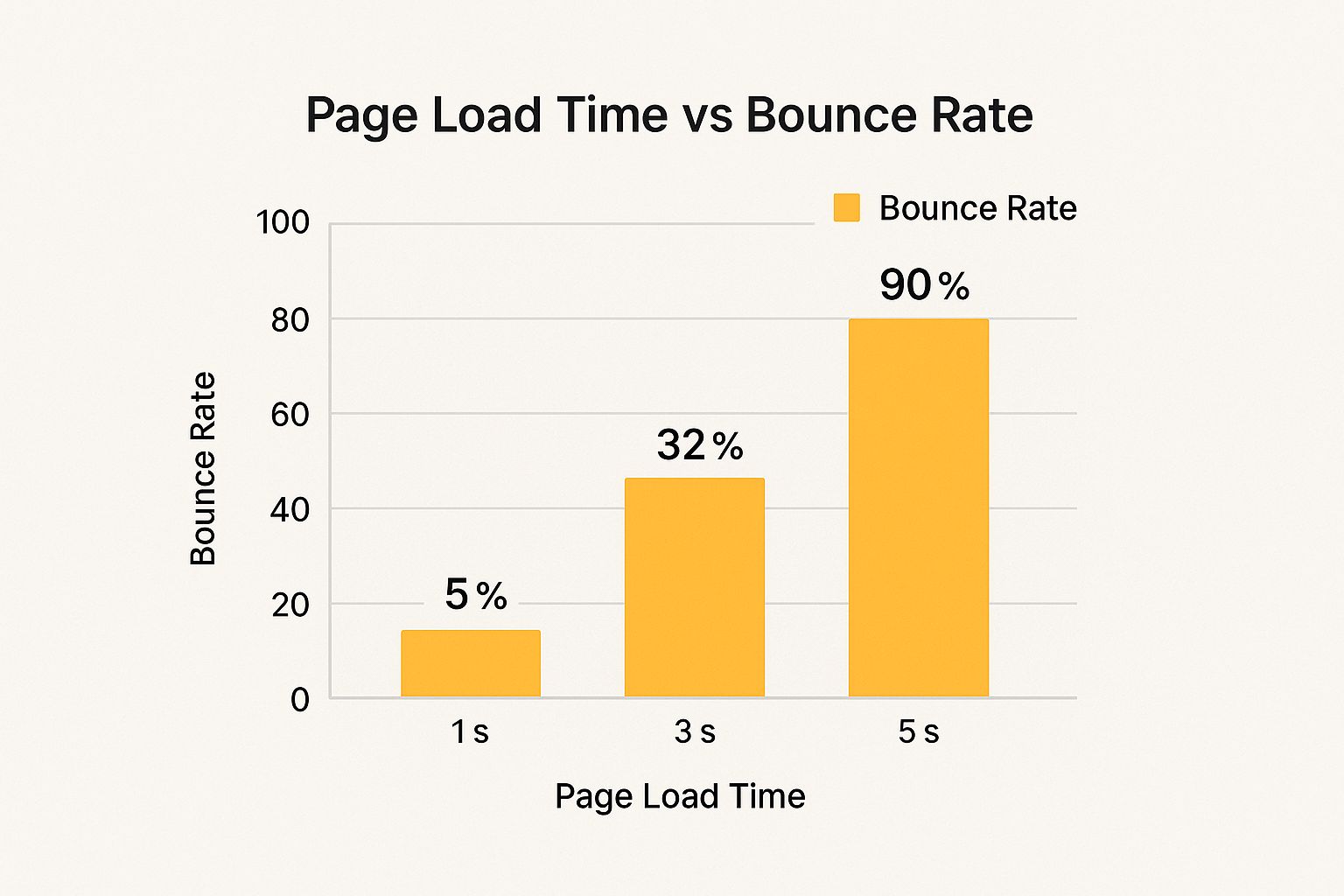
The data is crystal clear: even a couple of extra seconds can mean the difference between landing a new customer and losing an opportunity forever.
Your Roadmap to a Faster Website
Fortunately, fixing this problem isn't nearly as complicated as it sounds. We're going to walk through the entire process, but it really all comes down to the three core pillars of image optimization.
Core Pillars of Image Optimization
This table gives you a quick snapshot of what you're about to master. These are the fundamentals that will turn your slow, heavy images into fast-loading assets.
| Optimization Pillar | Primary Goal | Key Techniques |
|---|---|---|
| Choosing the Right Format | Balance image quality with the smallest possible file size. | Using JPEG for photos, PNG for graphics with transparency, and WebP for both. |
| Smart Compression | Drastically reduce file size without a visible drop in quality. | Applying lossless or lossy compression and using modern tools. |
| Efficient Loading | Load images only when they are needed by the user. | Implementing responsive images for different screen sizes and lazy loading. |
By focusing on these three areas, you can transform your site's biggest performance bottleneck into a powerful tool that enhances user experience, drives conversions, and helps you climb the search rankings.
Mastering these techniques will put you way ahead of the competition and help you build a better, faster web for your audience. If you're looking for an even deeper dive, this complete guide to Image Optimization for Web is another fantastic resource to have on hand.
Choosing the Right Image Format
Picking the right image format is one of the single most important calls you can make for web performance. It's a bit like choosing the right tool for a job—you wouldn't use a sledgehammer to hang a picture frame. Using the wrong image type can bloat your page with massive files, kill your load times, and frustrate visitors right out the door.
This isn't just a nerdy technical detail. It's about matching what the image is with what the format does best. A vibrant, detailed photograph has completely different needs than a simple logo that needs a transparent background. Getting this right from the jump saves you from common headaches, like finding a gigantic PNG file where a lean JPEG or WebP would have been perfect.
JPEG Your Go-To for Photography
For decades, JPEG (or JPG) has been the undisputed workhorse of the web, and for good reason. It’s brilliant at handling images with lots of colors and smooth gradients. This makes it the perfect choice for pretty much any photograph, from big hero images to detailed product shots.
The magic behind JPEG is lossy compression. It smartly throws away tiny bits of data that the human eye isn't likely to miss, dramatically shrinking the file size while keeping the image looking sharp. When you save a JPEG, you can even pick the quality level, giving you precise control over that balance between file size and visual clarity.
- Best For: Detailed photographs, images with millions of colors, and complex gradients.
- Avoid For: Graphics with sharp lines, text, or any image needing a transparent background.
PNG When Transparency and Sharpness Matter
Where JPEGs struggle, PNGs thrive. If you need crisp, clean lines or a transparent background, PNG is your best friend. It uses lossless compression, which means it reduces the file size without sacrificing a single pixel of image data. The result is a perfect, razor-sharp copy of the original graphic.
This makes it the go-to format for logos, icons, and interface elements where every detail counts. Ever seen a company logo on a website with a fuzzy, messy-looking box around it? That’s almost certainly a JPEG that should have been a PNG. The only catch? PNG files can get really big, especially if you try to use them for photos.
Key Takeaway: Use PNGs only when you absolutely need transparency or perfect sharpness for simple graphics. For almost everything else, another format will be a more efficient choice.
WebP The Modern All-Rounder
Enter WebP, the next-generation format from Google built specifically for the modern web. It's a true powerhouse, capable of handling both lossy and lossless compression, supporting transparency, and even animation. In nearly every test, a WebP image comes out smaller than its JPEG or PNG counterpart at the same quality level.
Think about an e-commerce store. Switching all your product photos from JPEG to WebP could slash your page weight, speed up load times, and create a much smoother shopping experience. According to Google, WebP lossless images are 26% smaller than PNGs, and lossy images are 25-34% smaller than comparable JPEGs. That’s a huge performance boost with virtually no downside.
Browser support used to be a concern, but those days are long gone. WebP is now almost universally supported across all major browsers. The screenshot from Can I Use below shows just how widespread it is.
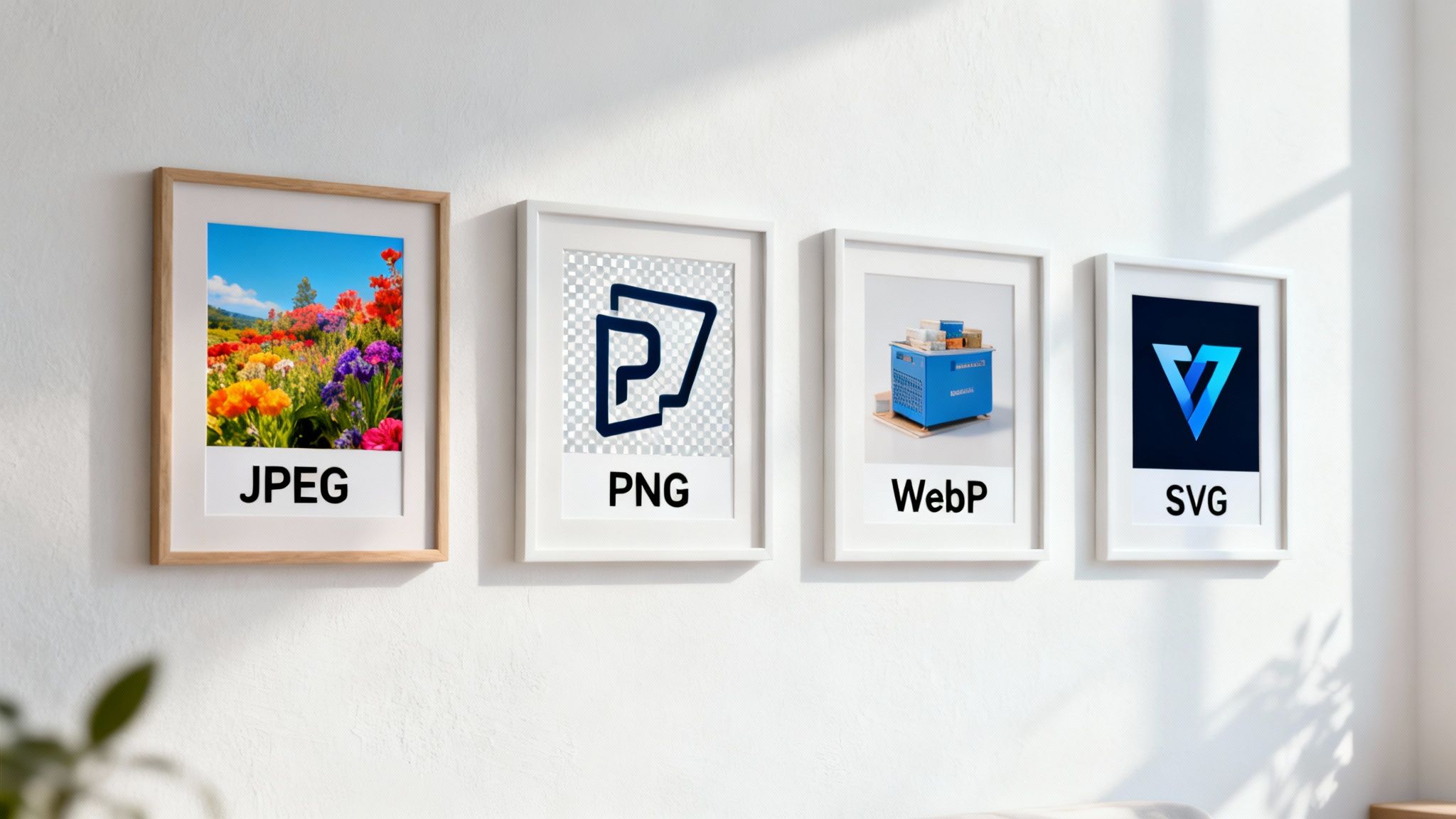
This basically confirms WebP is a safe and incredibly effective choice for the vast majority of your audience. It's the new standard.
SVG For Infinitely Scalable Graphics
Finally, there’s SVG (Scalable Vector Graphics). Unlike the other formats we've covered, SVGs aren't made of pixels. They're built from XML code that draws shapes, lines, and curves. This means they are completely resolution-independent.
You can scale an SVG from the size of a tiny icon to a massive billboard, and it will never, ever lose quality or look blurry. This makes SVGs the ultimate format for logos, icons, and any simple illustration. They are also incredibly lightweight and can be styled and animated with CSS and JavaScript, opening up a world of interactive possibilities. If your graphic is vector-based, SVG is the answer.
Choosing the right format can feel overwhelming, but it boils down to matching the image's purpose with the format's strengths. To make it even clearer, here's a quick comparison table to help you decide.
WebP vs JPEG vs PNG vs SVG Comparison
| Format | Best For | Key Feature | Performance Impact |
|---|---|---|---|
| WebP | Everything (photos, graphics, transparency) | Superior compression, supports transparency & animation. | Lowest (excellent file size to quality ratio) |
| JPEG | Photographs, complex images with gradients | Lossy compression for small photographic files. | Low (great for photos, poor for sharp graphics) |
| PNG | Logos, icons, graphics requiring transparency | Lossless compression and alpha transparency support. | High (large file sizes, especially for photos) |
| SVG | Logos, icons, simple illustrations, interactive graphics | Vector-based, infinitely scalable, and code-based. | Very Low (extremely small files for simple graphics) |
Ultimately, my personal workflow has shifted heavily toward WebP for almost all raster images (pixel-based photos and graphics) and SVG for all vector graphics. This combination covers about 99% of use cases and delivers the best possible performance.
Mastering Compression Without Sacrificing Quality
Once you've picked the right file format, the next step is where you'll see the biggest performance gains: compression. This is the art of shrinking an image's file size, and learning how to do it right is the secret to balancing a beautiful site with a fast one.
The goal here isn’t just to make files a little smaller. It's to make them massively smaller without anyone noticing a drop in quality. It’s totally possible to slash an image's file size by 70% or more, turning a clunky, heavy page into something that feels snappy and responsive. Getting this one step right can give your site an immediate, dramatic speed boost.
Lossy vs. Lossless: What's the Difference?
Compression isn't a one-size-fits-all deal. It's a strategic choice, and it really comes down to two methods: lossy and lossless.
-
Lossless Compression: Think of this as smart packing. Lossless compression finds more efficient ways to store all the image data without throwing a single pixel away. It's the perfect choice when you need absolute, pixel-perfect quality—like for a technical diagram, a sharp logo, or a detailed icon. The trade-off? The file size reductions are usually pretty modest.
-
Lossy Compression: This one is a bit more aggressive. Lossy compression strategically and permanently removes bits of data from the image that the human eye is least likely to pick up on. This is where you get those huge file size reductions. For most images on the web, especially photos, a little bit of lossy compression is the way to go because the quality loss is often imperceptible.
My personal rule of thumb is to always start with lossy compression for photos and complex graphics. The performance benefit is simply too large to ignore. I only turn to lossless when every single pixel must be perfectly preserved.
My Go-To Compression Tools
Theory is great, but you need the right tools to get the job done. Over the years, I've landed on a few favorites that are powerful, easy to use, and deliver fantastic results every single time.
- Squoosh: This browser-based tool from Google is my first stop for manual compression. It gives you a live side-by-side preview, letting you tweak compression levels and see the impact on quality and file size in real-time. That visual feedback is priceless for finding the perfect balance.
- TinyPNG: Don't let the name fool you—this thing is a beast with both PNG and JPEG files. TinyPNG uses smart lossy compression to shrink files without you having to mess with any settings. It's incredibly fast for quick jobs and even has a WordPress plugin for automating the whole process.
- ImageOptim: If you're on a Mac, ImageOptim is a must-have free desktop app. It's a simple drag-and-drop tool that runs a whole suite of compression algorithms on your images to squeeze out every last kilobyte without harming visual quality.
A Quick Walkthrough with Squoosh
Let's see this in action. The Squoosh interface makes it dead simple to see exactly what you're gaining.
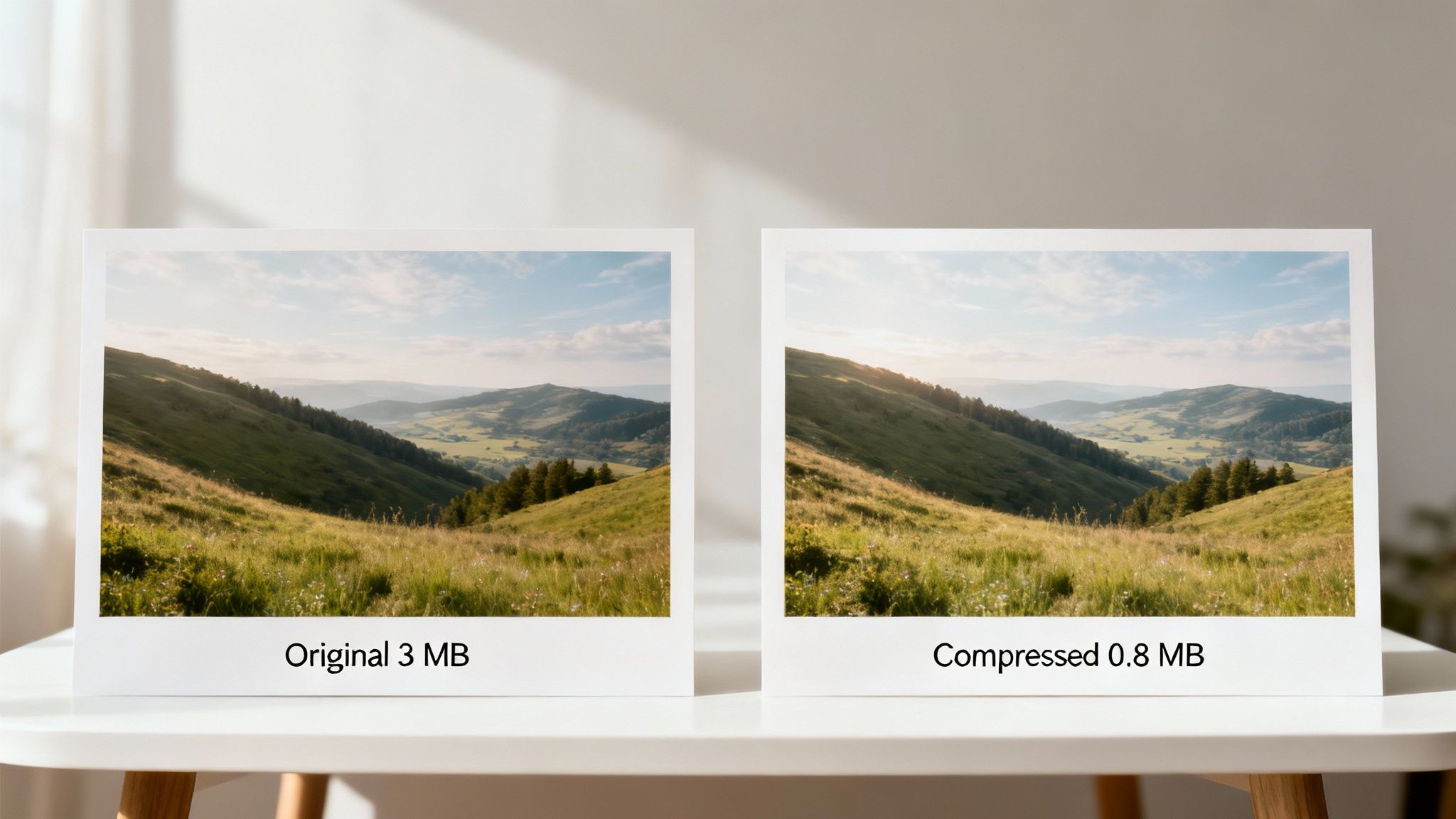
On the left, you've got your original. On the right, the compressed version. That slider in the middle is your best friend—drag it back and forth to compare them directly. The controls on the right let you fine-tune everything.
Look at the bottom right corner of that screenshot. The optimized image is 87% smaller than the original. That is a massive saving, all from just sliding the quality setting down. This is the kind of immediate win that makes image optimization so satisfying. If you want to dive deeper, there are some great techniques to reduce photo file size without losing quality that you can explore.
It's all about finding that sweet spot. For JPEGs, I usually start by setting the quality to around 75. Then I'll slowly nudge it down until I see any hint of visual weirdness, and then I'll just bump it back up a tiny bit. It's a simple process that quickly becomes second nature and pays off big time in site speed.
Implementing Responsive and Lazy-Loaded Images
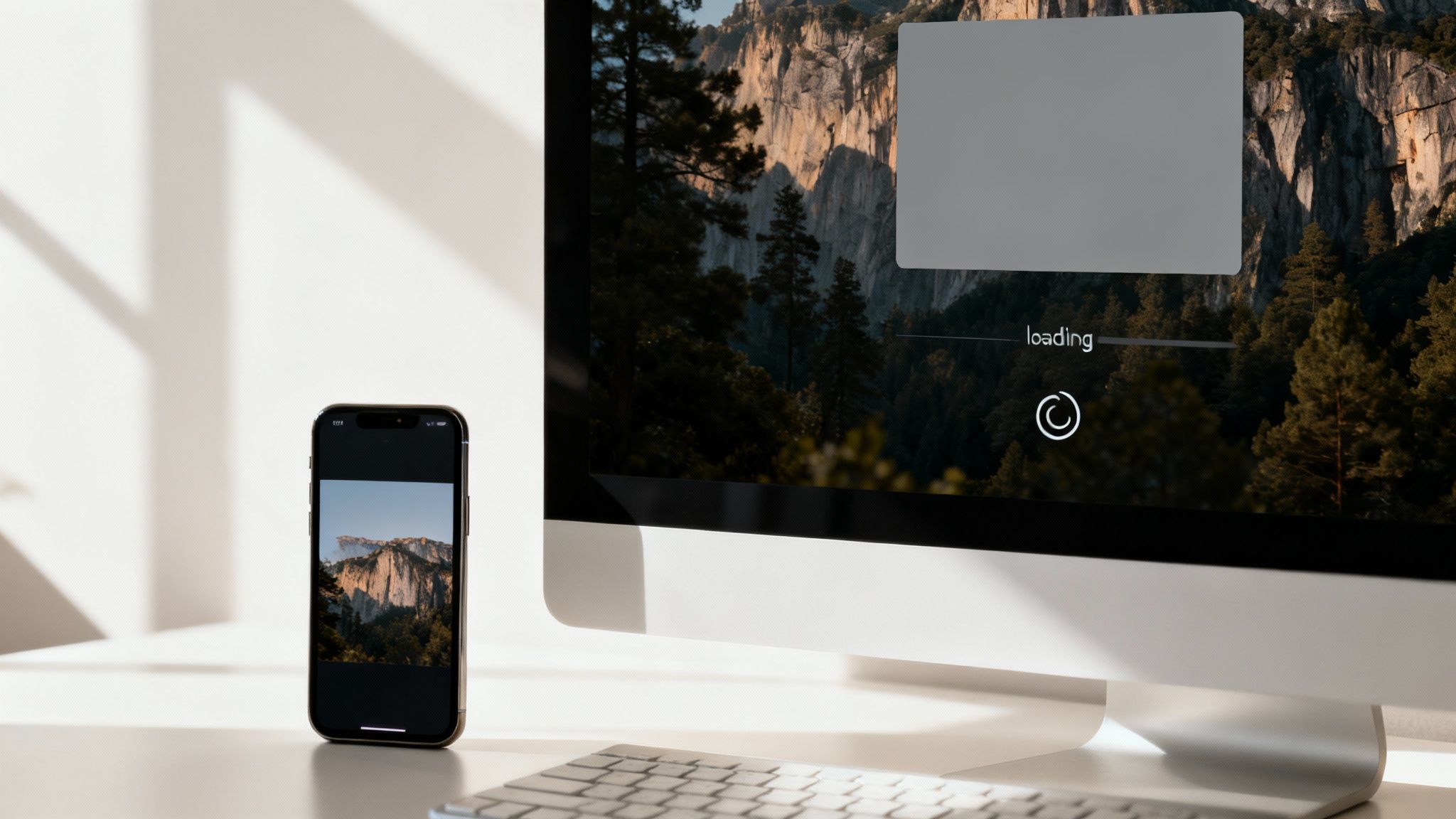
So far, we've been all about shrinking the file size of a single image. But what happens when that image needs to look sharp on a massive desktop monitor and a tiny phone screen? If you just send the giant, high-res photo to the mobile user, you’re burning through their data and tanking your load time.
This is where you have to work smarter, not just smaller. By using responsive images and lazy loading, you can make sure every user gets an experience perfectly sized for their device, without downloading a single unnecessary byte.
Serve the Right Image Size with Srcset and Sizes
The most powerful weapon in your responsive image arsenal is the srcset attribute. Instead of just telling the browser "here's an image," srcset says, "here are several versions of this image—pick the one that best fits the user's screen."
It's a complete game-changer. You provide multiple image files, each at a different width, and the browser does the heavy lifting. It intelligently selects the most appropriate file based on the device's screen resolution and size, which is exactly what you want.
Here’s what that looks like in your HTML:

Let's break that down:
srcset: This attribute lists your image options (flower-small.jpg, etc.) and tells the browser each file's actual width in pixels (that’s the500w,1000wpart).sizes: This is the crucial sidekick tosrcset. It gives the browser context, explaining how wide the image will actually be displayed at different screen sizes. In this case, it says, "if the screen is 600px wide or less, the image will take up 100% of the viewport width (100vw); otherwise, it will only take up 50% (50vw)."
Armed with this information, the browser makes an intelligent choice. A small screen gets the 500px image, while a bigger screen gets the 1000px or 1500px version. No waste.
Pro Tip: While you can code this by hand, many modern platforms handle this for you. For instance, anyone thinking about moving to WordPress will be happy to know that it automatically generates
srcsetandsizesfor all images you upload. It's a huge time-saver.
Defer Off-Screen Images with Lazy Loading
Now for the second piece of the puzzle: lazy loading. This technique is brilliant in its simplicity. Instead of loading every single image on a page the second a user lands, lazy loading defers loading any image that isn't currently visible on the screen.
Think about a long blog post or an image gallery. Why force a user to wait for dozens of images at the bottom to load before they can see the content at the top? With lazy loading, those off-screen images only load when the user actually scrolls down to them. This dramatically improves initial page speed and saves a ton of bandwidth, especially for mobile users.
Native Lazy Loading: The Easy Win
Years ago, implementing this required clunky JavaScript libraries. Not anymore. Today, it’s built right into modern browsers, and all you need is a single attribute: loading="lazy".
It’s genuinely this simple:
That’s it. Just by adding that one attribute, you tell the browser not to load this image until it gets close to the viewport. It’s an incredibly easy and effective performance boost.
Sure, there are still a few cases where a JavaScript solution might be needed—like if you need more control over when the image loads or want fancy fade-in effects. But for 90% of use cases, native lazy loading is the perfect, hassle-free solution. I recommend applying it to every image that appears "below the fold," which means everything except your main hero image or logo that needs to be visible right away.
How Image Optimization Boosts Your SEO
Connecting faster images to higher search rankings isn't just a theory; it's a fundamental part of modern SEO. We often talk about the user-facing benefits, like keeping visitors from bouncing off your site. But how search engines perceive your site is just as critical. When you nail down how to optimize images for web, you’re sending direct signals that Google and other search engines use to rank your pages.
Think of it like this: Google’s job is to send its users to the best possible destination—websites that are fast, useful, and accessible. Properly optimized images hit all three of those marks. They speed up your load times, create a smoother journey for your visitors, and give search crawlers extra context to understand your content on a much deeper level.
Make Your Images Discoverable
Search engine crawlers can’t “see” an image the way you and I can. They rely entirely on the text-based clues you leave behind to figure out what an image is all about. This is where your file names and alt text transform from afterthoughts into powerful SEO tools.
A default file name like IMG_4815.jpg tells a crawler absolutely nothing. But changing it to blue-suede-shoes.jpg? That gives Google immediate, relevant context. It’s a tiny change that turns a meaningless string of characters into a descriptive, keyword-rich asset that helps search engines understand your page's topic. This is a foundational element you'll find in any solid guide covering technical SEO best practices.
Alt text serves two crucial purposes at once:
- For Accessibility: It describes the image for visually impaired users who use screen readers, making your site more inclusive.
- For SEO: It provides another piece of contextual information, reinforcing the keywords and themes of your content for search engines.
A great alt text for our shoe example might be: "A pair of classic blue suede shoes with detailed stitching on a white background." It’s descriptive enough for both users and crawlers, which is exactly what you want.
Improve Core Web Vitals and Ranking Signals
Google’s Core Web Vitals are a set of metrics that measure real-world user experience, and yes, they are a direct ranking factor. One of the most important is Largest Contentful Paint (LCP), which basically measures how quickly the biggest piece of content—usually an image or a block of text—loads on the screen.
Unoptimized images are the number one enemy of a good LCP score.
That massive hero image at the top of your homepage? If it's not compressed, it can single-handedly tank your LCP, sending a clear signal to Google that your page delivers a slow, frustrating experience. By compressing your images and serving them in the right size, you directly improve this mission-critical metric.
The bottom line is that fast-loading images mean a better user experience, and search engines reward sites that deliver that. Using descriptive file names and alt text also makes your images more likely to show up in Google Images search, opening up another avenue for traffic. You can explore a more detailed analysis of these traffic-driving techniques on Elementor.com to see just how much of an impact this can have.
Using a CDN for Lightning-Fast Image Delivery
After you’ve dialed in your formats and shrunk your file sizes, there’s one last move to make sure your images load instantly for everyone, no matter where they are. That move is using a Content Delivery Network (CDN).
Think of it like this: a CDN is basically a worldwide network of servers that all keep a copy of your website's images.
So, when someone from Japan visits your site hosted in, say, Texas, their browser doesn't have to send a request halfway across the globe. Instead, the CDN serves up your images from a local server right there in Tokyo. This dramatically cuts down the physical distance data travels—a concept we call latency.
The result? A much faster, smoother experience for your international visitors. It’s the difference between waiting weeks for an overseas package versus getting same-day delivery from a local warehouse.
The Power of Proximity and Performance
The performance boost from a CDN isn't just theoretical; the numbers back it up. By tapping into a distributed network, websites can see a 27% reduction in latency and a whopping 50% improvement in load times.
This has a direct impact on engagement, too. It turns out that sites using a CDN see a bounce rate that's 15% lower on average. You can dig into these impressive technical SEO statistics to see the full picture of how speed impacts user behavior.
But it’s not just about speed for distant users. A CDN also takes a huge load off your main web server. Since the CDN handles the bulk of image requests, your server is free to do what it does best: actually building and sending the web page. This can be a lifesaver during traffic spikes, preventing slowdowns and keeping your site stable.
A CDN isn’t just a "nice-to-have" for global businesses. It's a foundational piece of a modern performance strategy that ensures a fast, consistent experience for every single user.
Let a Smart CDN Automate Your Optimization
Here's where things get really interesting. Many modern CDNs are much more than just a delivery service. They've evolved into powerful platforms that offer a whole suite of automatic image optimization features, handling most of the heavy lifting for you.
These "image CDNs" are incredibly smart and can transform your assets on the fly.
Here’s a taste of what they can often do for you, completely automatically:
- Next-Gen Format Conversion: The CDN can tell if a user's browser supports WebP. If it does, it serves that ultra-efficient format instead of a heavier JPEG or PNG, guaranteeing the smallest possible file.
- On-the-Fly Resizing: It can resize images based on the user's device. A smartphone gets a perfectly sized small image, while a 4K desktop gets a crisp, high-resolution one—all without you needing to create multiple versions yourself.
- Automatic Compression: Many CDNs will apply their own advanced compression algorithms to shave off even more kilobytes, all without any manual work on your end.
By bringing a CDN into your workflow, you're not just speeding up delivery times. You're effectively outsourcing a huge chunk of your image optimization process to a specialized, high-performance platform. It's automation that ensures every visitor gets the fastest version of every image, every time.
A Few Common Questions I Get Asked All The Time
Even with the best game plan, a few practical questions always come up. Getting image optimization right often means knowing how to handle these real-world dilemmas. Let’s run through some of the most common ones I hear from clients.
How Much Should I Compress My Images?
Honestly, there’s no single magic number. The perfect compression level really depends on the image itself and what it’s doing on the page. For most JPEGs and WebP files, I find a quality setting somewhere between 60-80% is a great place to start.
My go-to approach is to use a tool with a live preview, like Squoosh. I'll drag the quality slider down until I can just start to see the image degrade, then I’ll nudge it back up a tiny bit. You’re looking for that sweet spot where the file size is as small as possible without a noticeable drop in visual quality.
Will Converting All My Images to WebP Break My Site?
This is a totally valid concern, but the risk today is incredibly low. WebP now has support across 97% of modern browsers. For that tiny fraction that can’t handle it, setting up a fallback is a simple and smart fix.
In fact, many modern systems do this for you automatically:
- WordPress Plugins: Tools like Smush or Imagify are smart enough to serve WebP files to browsers that support them while giving JPEGs or PNGs to the ones that don't.
- CDNs: Most Content Delivery Networks can detect what browser a visitor is using and serve the right image format on the fly, without you lifting a finger.
And if you’re coding it yourself, the <picture> HTML element is your best friend. It’s built specifically for this purpose, letting you specify fallback formats so no visitor ever sees a broken image.
Should I Optimize Manually or Use a Plugin?
This really comes down to your workflow and the scale of your website.
Manually optimizing gives you ultimate control over every single image. It’s perfect if you're a perfectionist or your site only has a handful of really important visuals.
But for websites with a ton of images—like a blog or an e-commerce store—an automated solution is a lifesaver. A good plugin or a CDN with built-in optimization ensures everything is consistent and saves you a massive amount of time. You get to focus on creating content, not fiddling with compression settings.
At Gidds Media, we build websites with performance baked in from the start, making sure every single element—especially images—is perfectly optimized for speed and SEO. If you want a site that works as hard as you do, let’s talk. See how we can help your Austin business grow.