Knowing how to migrate a WordPress site is about more than just moving files. It's the art of transplanting your entire digital presence—files, database, and all—from one server to another without dropping the ball on performance or SEO. For a growing business, it’s not a matter of if, but when you'll need to make this move for better performance, tighter security, or more powerful hosting features.
Why and When to Migrate Your WordPress Site
The thought of moving your entire website can be intimidating, but there are usually clear signs telling you it’s time. This isn’t just about chasing a cheaper hosting bill; it's a strategic move that directly impacts your user experience, security posture, and ability to scale. Recognizing the right moment to migrate is the first real step in a successful transition.
Key Triggers for a Site Migration
Often, the push to migrate comes from growing pains or sheer frustration with your current setup. It’s rarely a single technical issue but a combination of factors telling you it’s time for a change.
Here are the most common red flags I see that signal a migration is overdue:
- Poor Site Performance: Your site feels sluggish, especially when traffic picks up. Slow load times are a surefire way to increase your bounce rate.
- Frequent Downtime: Your current host is unreliable, with outages that make your site unavailable to customers. Nothing kills trust faster.
- Outgrowing Resources: You’re constantly hitting the limits of your shared hosting plan. You need more server power, storage, or bandwidth to keep things running smoothly.
- Lack of Essential Features: Your host is missing critical tools you need, like one-click staging environments, automatic backups, or even a free SSL certificate.
- Inadequate Customer Support: Getting a straight answer or a quick fix from your hosting provider feels impossible, leaving you to solve complex problems on your own.
This whole process can be broken down into three core phases: Evaluate, Plan, and Migrate.
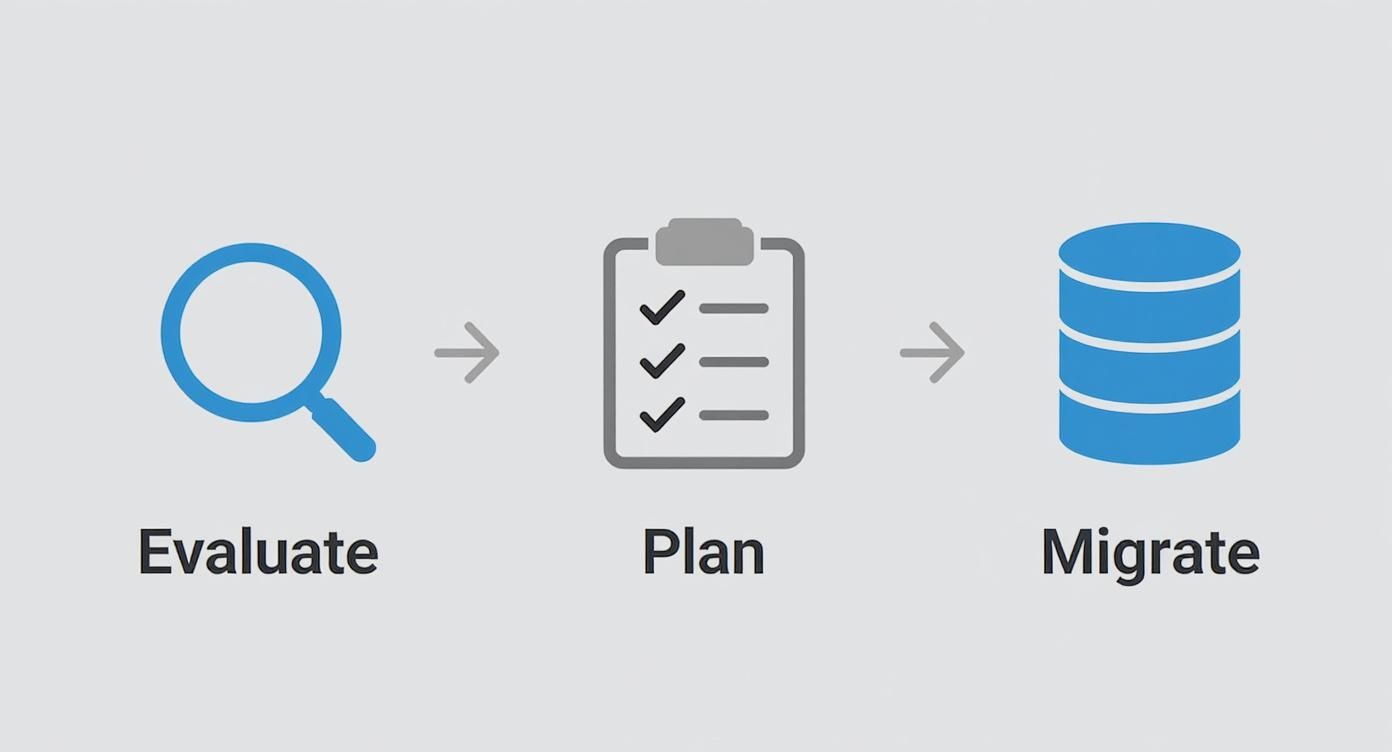
As the visual shows, a smooth migration is built on a solid foundation of careful evaluation and detailed planning—long before you ever move a single file.
A well-planned migration is a proactive business move, not a reactive technical fix. It's about positioning your digital presence for future growth and stability.
The need for this is only growing, especially since WordPress now powers an incredible 43.5% of all websites on the internet. With so many businesses built on the platform, moving to better infrastructure has become a standard part of a website's lifecycle. You can explore WordPress market share statistics on globalmediainsight.com for a deeper dive into the numbers.
If you’re still weighing your options, our guide on thinking about moving to WordPress from another platform can offer some valuable perspective. At the end of the day, a migration lets you unlock the platform's full potential by pairing it with a hosting environment that can truly keep up.
Preparing for a Flawless WordPress Migration
Jumping straight into moving files and folders is a recipe for disaster. I’ve seen it happen too many times. A truly successful WordPress migration is built on a foundation of careful, deliberate preparation.
Think of it as the prep work before painting a room—if you skip the taping and sanding, you’re guaranteed a messy, frustrating outcome. Taking these initial steps seriously protects your hard work and sets the stage for a smooth, stress-free transition.
The absolute first priority? A complete, reliable backup of your entire website. This is your non-negotiable safety net. If anything goes sideways, a solid backup means you can restore your site to its original state in minutes, not days. A full backup has two critical parts: your website files (all your themes, plugins, and uploads) and your database (every post, page, comment, and user).
Creating a Bulletproof Backup
Even if your hosting provider offers backups, I always, always create my own manual backup right before starting the migration. It gives you direct control and priceless peace of mind. While you could do this the old-school way with FTP and phpMyAdmin, using a trusted plugin is far more efficient and less prone to human error.
Plugins like UpdraftPlus or Duplicator are industry standards for a reason. They neatly package your entire site—both files and the database—into a single, portable archive. This is exactly what you need.
For instance, take a look at the simple interface for UpdraftPlus, one of the most popular backup plugins out there.
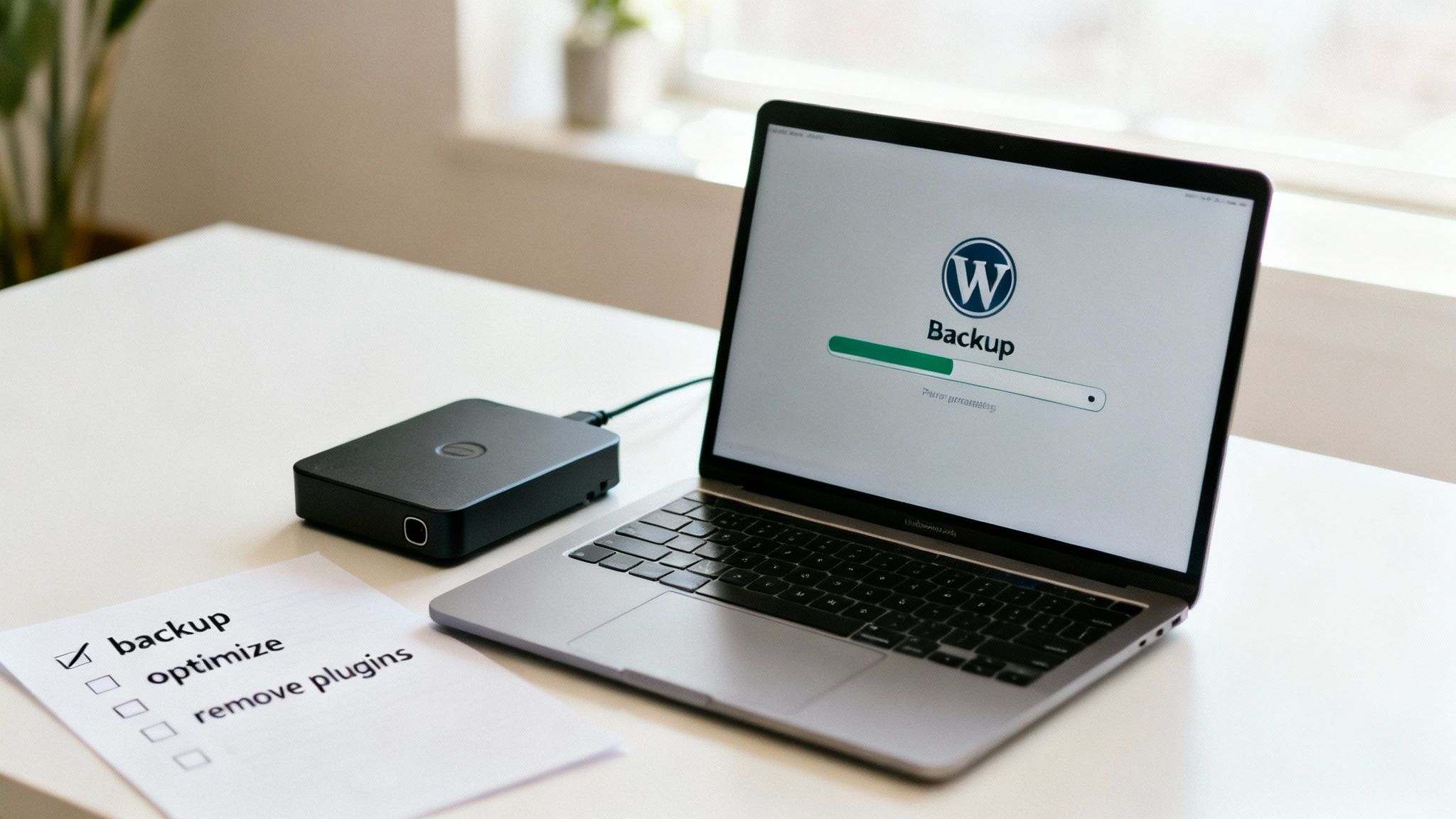
As the screenshot shows, the process is incredibly straightforward. You can back up your site with a single click and even send the files directly to cloud storage like Google Drive or Dropbox for safekeeping.
Pro Tip: Don't just create the backup—test it. This is a rookie mistake I see all the time. An untested backup is just a hope. Use a local development tool or a staging site to practice restoring from your backup file. This ensures it isn't corrupted and actually contains everything you need.
Tidying Up Your Site Before the Move
Migrating a cluttered site is like moving to a new house without throwing anything away first. You just end up carrying over junk you don’t need, which can slow down the migration process and bog down your new site's performance from day one.
Start with a good old-fashioned plugin and theme cleanup. Go through your WordPress admin and deactivate and delete any that are not in active use. Hoarding old, inactive plugins is a classic source of security vulnerabilities and database bloat, making your backup files unnecessarily massive.
Next, turn your attention to the database itself. Over time, it accumulates all sorts of clutter like post revisions, thousands of spam comments, and expired transients (which is just temporary data).
Here are a few key cleanup tasks I recommend before every migration:
- Delete Unused Plugins and Themes: Seriously, be ruthless. If it's not active and you have no immediate plans for it, get rid of it.
- Clean Out Post Revisions: WordPress loves to save a copy of every draft. While helpful, this can add thousands of extra rows to your
wp_poststable over the years. - Remove Spam Comments: Empty that spam folder. It’s a simple click that can clear out a surprising amount of database junk.
- Optimize Database Tables: Use a plugin like WP-Optimize or your host's phpMyAdmin tool to run an "Optimize Table" command. This reorganizes your data for more efficient access, much like defragmenting a hard drive.
Verifying Your New Hosting Environment
Finally, before you even think about starting the move, you need to scout the destination. A quick check of your new server environment can prevent the kinds of compatibility issues that completely break your site on arrival.
Confirm that the new host's server meets or exceeds WordPress's minimum requirements. Pay close attention to two things: the PHP version and the MySQL version. If your current site is running on an older PHP version (like 7.4) and the new server is on a modern one (like 8.2), you have to be sure your theme and plugins are compatible. Otherwise, you’re walking right into fatal errors.
Most reputable hosts make this information easy to find in their control panel. A five-minute check here can literally save you hours of troubleshooting later.
Choosing Your WordPress Migration Method
Alright, once your site is backed up and tidy, you’ve hit a fork in the road. This is a critical decision point in moving your WordPress site, and there’s no single “best” way to do it.
The right choice really boils down to your technical comfort level, how complex your site is, and what your budget looks like. Picking the wrong method can easily turn a simple job into a week-long headache, so it’s worth taking a minute to understand your options.
We’re going to walk through the three main paths: using a plugin, doing it all by hand, or letting your hosting provider take the wheel. Each one has its place, and we'll figure out which is right for you.
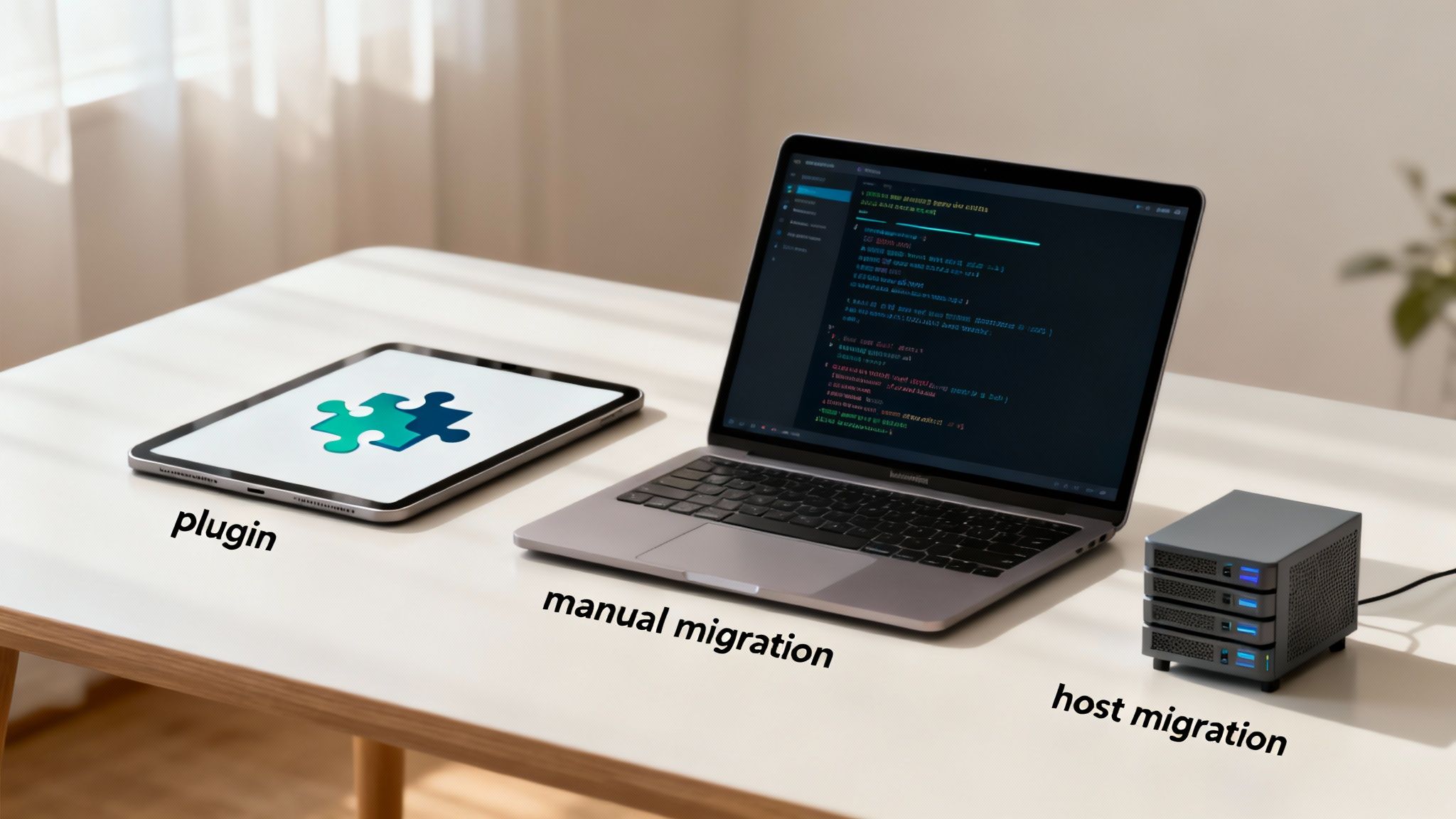
The Plugin-Based Approach
For the vast majority of people—especially if you're not a developer—using a plugin is the simplest and safest way to go. These tools are built to do all the heavy lifting, neatly packaging up your entire website (files, database, themes, the whole nine yards) into a single, portable file.
Think of plugins like All-in-One WP Migration or Duplicator as a guided wizard. They walk you through exporting your site from the old host and then importing it to the new one. The process is usually dead simple: install the plugin on both sites, create an export file, and upload it to your new WordPress install.
This method is a perfect fit for:
- Beginners: If acronyms like FTP and phpMyAdmin make you break out in a cold sweat, this is your path. No question.
- Small to Medium Sites: Standard blogs, portfolios, and most small business websites are ideal candidates for a plugin migration.
- Speed and Simplicity: You can often get the entire move done in less than an hour, all without touching a single line of code.
But there can be a catch. The free versions of some popular plugins have file size limits. If you're running a massive site or one that's heavy on media, you might hit a wall. A big e-commerce store with thousands of product photos, for instance, will likely blow past the free limit, forcing you to buy a premium extension to finish the job.
The Manual Migration Method
Now, if you're a developer or just a tech-savvy user who wants total control, a manual migration is your jam. This is the hands-on approach where you directly access the server and database, giving you the power to manage the process with surgical precision.
It's a two-part dance: moving your files and migrating your database. You’ll use an FTP (File Transfer Protocol) client like FileZilla to download all your WordPress files—core, themes, plugins, and uploads—from the old server. Then, you simply upload them to the new one.
At the same time, you'll use a database tool like phpMyAdmin to export your entire database as an SQL file. On the new server, you'll create a new database and import that file. The last technical piece is updating your wp-config.php file with the new database details.
A manual migration gives you complete transparency. You aren't relying on a plugin's "black box" to work its magic; you're in the driver's seat. For complex or highly customized sites, that control is priceless.
While this method offers maximum control, it also carries the most risk. One tiny mistake—a typo in the wp-config.php file or a hiccup during the database import—can bring your entire site down. It’s a powerful but unforgiving method best left to those who know what they're doing.
Host-Assisted and Managed Migrations
What if you don't want to deal with any of this? Good news. Many hosting companies offer a migration service, and a lot of them will even do it for free when you sign up for a new plan. This is the ultimate hands-off approach.
You just give them your old hosting credentials, and their expert team handles the entire process for you. It's a fantastic option for business owners who know their time is better spent running their business, not wrestling with server files.
Here's a quick breakdown to help you decide:
| Migration Method | Best For | Pros | Cons |
|---|---|---|---|
| Plugin-Based | Beginners, Small Sites | User-friendly, Fast, Low Risk | Potential file size limits on free versions |
| Manual (FTP/DB) | Developers, Complex Sites | Complete Control, No Size Limits | High Risk of Error, Time-Consuming |
| Host-Assisted | Busy Business Owners | Zero Technical Effort, Professional Handling | Can Have a Cost, Less Control |
The need to migrate is more common than ever. The WordPress ecosystem is exploding, with over 10,000 new websites coming online every single day. As sites grow, many owners find they've outgrown their starter hosting plan. This growth often forces a move to a server that can handle modern software and security needs—especially for the one-third of all online stores powered by WooCommerce, where a migration mistake can directly tank revenue. You can find more WordPress growth trends from Hostinger's data if you're curious.
Ultimately, choosing your migration method is a balance of confidence, control, and convenience. For most people, a plugin is a reliable, low-stress solution. For the experts, manual control is king. And for anyone short on time, letting your new host handle the move is a smart investment.
Your Post-Migration Go-Live Checklist
You’ve muscled through the heavy lifting of moving your site’s files and database to the new server. Take a second to breathe—that’s a huge milestone. But before you pop the champagne, there’s one final, absolutely critical phase: the go-live sequence.
This is a series of checks and updates that ensures your site not only works perfectly in its new home but that your users (and Google) don’t notice a single hiccup.
Think of it like moving into a new house. All the furniture is inside, but now you need to forward your mail, turn on the utilities, and test all the keys. So many migrations go wrong at this final stage, leading to a mess of broken links, error messages, and a genuinely frustrating experience for visitors. Let's get it right.
Pointing Your Domain to the New Server
The first official step to "going live" is updating your Domain Name System (DNS) records. This is how you tell the internet where your website’s new address is. DNS is basically the internet's address book; when someone types your domain into their browser, it looks up the correct server IP address to connect them.
Right now, it's still pointing to your old host. You’ll need to log into your domain registrar—the company you bought your domain from, like GoDaddy or Namecheap—and change the 'A' record or, more commonly, the nameservers to the new ones your hosting provider gave you.
This change isn't instant. DNS updates can take anywhere from a few minutes to 48 hours to fully propagate across the globe. During this window, some visitors might see the old site while others see the new one. That's why I always recommend doing this during a low-traffic period, like late at night or over a weekend.
Essential Database and URL Cleanup
Once your domain starts resolving to the new server, it's time to hunt down any lingering references to old file paths or temporary domains. Even the best migration plugins can miss hardcoded links, which is where a search-and-replace on your database becomes your best friend.
You need to scan the entire database for any mention of the old URL or server path and replace it with the new one.
Common places old URLs hide:
- Within post and page content.
- In widget settings or custom theme options.
- Tangled up in serialized data from complex plugins.
The safest tool for the job is a plugin like Better Search Replace. It's specifically built to handle serialized data correctly, which prevents it from wrecking your theme settings or widgets. Trying to run manual SQL queries is just asking for trouble unless you're extremely careful.
Crucial Tip: Always run a "dry run" first. Any decent search-and-replace tool has this option. It shows you exactly what it would change without actually doing it, letting you catch potential mistakes before they become a real headache.
After the URL cleanup, your very next step should be regenerating your permalinks. This simple action flushes your site's rewrite rules and prevents a flood of 404 "Not Found" errors. Just head to Settings > Permalinks in your WordPress dashboard and hit "Save Changes" without actually changing anything. It forces WordPress to rebuild its URL structure on the new server.
Final Technical and Functional Testing
With the core technical updates handled, it’s time for a top-to-bottom site audit. Your mission is to click, test, and interact with every part of your website as if you were a brand-new visitor. Don’t just glance at the homepage—go deep.
First, the basics. Make sure your new SSL certificate is properly installed and that HTTPS is being forced across the entire site. No excuses. Then, it's on to functional testing.
- Forms: Submit every single contact form, quote request, and newsletter signup. Did the notifications actually land in the right inbox?
- E-commerce: If you run a store, go through the entire purchase flow. Add a product to the cart, navigate to checkout, test your payment gateway, and confirm order emails are being sent correctly.
- User Accounts: Log in and out of a test user account. You should also absolutely test the "forgot password" feature.
- Plugins and Integrations: Verify that all your essential plugins are active and configured correctly. After your WordPress site is migrated, a critical step is to ensure all necessary plugins are re-installed or verified. For a refresher, you can refer to a complete guide on how to add a plugin to WordPress.
- Media: Click through your galleries and posts. Are all images, videos, and downloadable files loading correctly? Broken images are a dead giveaway of a sloppy migration.
This is also the perfect time to run a performance check. Sure, you might have moved to a faster server, but a misconfiguration can still drag your site down. Use a tool like GTmetrix or PageSpeed Insights to benchmark how your site loads from its new home. If you want to understand why this is so critical, you can learn more about the importance of speed performance for your website and its massive impact on users and SEO.
By methodically working through this go-live checklist, you turn a potentially chaotic launch into a smooth, controlled, and professional process. This final polish is what separates a successful WordPress migration from a technical nightmare.
Protecting Your SEO During and After the Move
A successful WordPress migration is one that goes completely unnoticed by search engines. The alternative? A sloppy move can vaporize years of hard-earned SEO authority overnight, sending your rankings into a nosedive. This is why a proactive, defensive SEO strategy is absolutely non-negotiable for any business that relies on organic traffic.
The whole process kicks off long before you flip the switch, ideally on a staging site. Think of a staging environment as a private, mirrored copy of your website. It’s your SEO safety net—a place where you can test everything from redirects to plugin functionality without any risk to your live site. This is where you catch and squash bugs before Google or your customers ever see them.
Mapping and Implementing 301 Redirects
One of the quickest ways a migration will devastate your SEO is by creating a minefield of 404 "Not Found" errors. This happens when you change your URL structure—even slightly—without telling search engines where the old pages have gone. The fix is the 301 redirect, a permanent pointer that sends an old URL to its new home, passing along the vast majority of its link equity.
Your first move is to create a complete map of every single URL on your current site. A tool like Screaming Frog is perfect for this; it'll crawl your site and spit out a comprehensive list. From there, just open up a simple spreadsheet. Old URL in one column, new URL in the next.
You'll almost certainly need 301 redirects if you're:
- Switching from
httptohttps. - Changing from a non-www to a www domain (or the other way around).
- Altering your permalink structure (e.g., from a messy
/?p=123to a clean/blog/my-post-title/). - Consolidating old content or deleting pages.
Once your URL map is ready, it's time to put those redirects in place. For most folks, a plugin like Redirection is the simplest path forward. It lets you import your spreadsheet directly and even helps you monitor for 404 errors after you go live.
Post-Launch SEO Monitoring
The moment your new site is live, your job pivots from implementation to monitoring. Your first stop should be Google Search Console, which is the most direct line of communication you have with Google. Submitting your updated XML sitemap here is mission-critical.
An XML sitemap basically hands search engine crawlers a roadmap to your new site, telling them about all the important pages and helping them discover and index your content much faster. Once that's submitted, you need to keep a close eye on the "Coverage" report in Search Console.
This report gives you invaluable feedback on how Google is crawling your migrated site, flagging any crawl errors or indexing problems that need your immediate attention.
A migration isn't "done" when the site goes live. It's done when organic traffic and rankings have stabilized, proving that search engines have fully accepted and understood the move.
This monitoring phase is crucial for about a month post-migration. Watch for any sudden drops in indexed pages, spikes in 404s, or new warnings about mobile usability. Catching these things early is the key to a full and speedy SEO recovery. For a deeper look at what to watch for, our guide covers many other technical SEO best practices that are vital during a move.
Finally, don’t forget about site performance. A migration is the perfect excuse to improve your site's speed and user experience—both of which are huge ranking factors. For specific guidance on trimming down load times, a great next step is learning about optimizing images for WordPress. At the end of the day, protecting your SEO is all about ensuring a seamless transition for both users and search bots, leaving no doubt that your site is still the same valuable resource it was before.
Answering Your Top WordPress Migration Questions
Look, even the most buttoned-up migration plan can hit a snag. It's totally normal for questions to pop up when you're in the thick of it. We've been there, so we've put together some straight answers to the questions we hear all the time.
Knowing the steps is one thing, but understanding the why behind them is what really lets you troubleshoot like a pro when things get weird.
How Long Will My Site Be Down During the Move?
This is the big one, right? The question every business owner asks first. The goal is always zero noticeable downtime, and I'm here to tell you it’s completely doable with a solid plan. All the heavy lifting—the file transfers and database imports—happens on your new server while your old site is still humming along.
The only moment of potential disruption is during DNS propagation. That's just the time it takes for the internet to recognize your domain's new address. While it can take up to 48 hours in rare cases, it's usually much, much faster. If you time the DNS switch for your slowest traffic period (like the middle of the night), most of your visitors will never even know anything happened.
Your site doesn't just "go offline." Instead, you'll have a short window where some visitors hit the old server and others hit the new one. This is exactly why we hammer home the importance of post-launch testing.
Will I Lose Any of My Data or Content?
Honestly, with a proper backup plan, the risk of losing data is practically zero. Before you touch a single file, you need to create a complete backup of everything: your website files and your database. This is your non-negotiable safety net.
Using a tried-and-true plugin like Duplicator or All-in-One WP Migration packages up every last post, page, comment, and setting. But here's the pro tip: verify your backup before you start. An untested backup is just wishful thinking. Do a quick restore on a local test site to confirm your data is all there and recoverable. It’s the ultimate peace of mind.
What Happens to My SEO Rankings?
This is a huge—and totally valid—concern. A botched migration can absolutely tank your SEO. But when you do it right, the impact on your rankings should be tiny and temporary. An SEO-friendly migration really boils down to three core rules:
- Keep Your URL Structure: Don't change your permalinks. Keep them identical to avoid a mountain of broken links and confused search engines.
- Set Up 301 Redirects: If you absolutely must change a URL, you need to implement a permanent 301 redirect. This tells Google to pass all the SEO juice from the old URL to the new one.
- Update Your Sitemap: As soon as you go live, submit an updated XML sitemap in Google Search Console. This is like sending a flare up to Google, telling it to come crawl your site's new home ASAP.
Follow these rules, and you're essentially telling search engines, "Hey, it's the same great site, just over here now." You might see a little fluctuation for a few weeks as Google re-indexes everything, but it will stabilize.
Navigating a WordPress migration can feel overwhelming, but you don't have to go it alone. Gidds Media specializes in seamless WordPress design, SEO, and site management to keep your digital presence sharp and effective. If you're looking for an expert team to handle your website and drive real growth, let's connect and build something great together.