Improving your website speed really boils down to three things: optimizing your images, leveraging browser caching, and minifying your code. If you focus on these core actions, you'll solve the most common performance bottlenecks out there. The result? A much faster experience for your visitors and better signals for search engines.
Why a Fast Website Matters More Than Ever

Before we get into the technical weeds, let's talk about why this is such a non-negotiable part of any modern digital strategy. This isn't just about chasing a high score on a testing tool—it's about real, tangible business results. Every millisecond your site takes to load has a direct impact on how users see you and, ultimately, your bottom line.
In a world of instant gratification, user patience is incredibly thin. A slow, clunky experience is the quickest way to lose someone. They won't wait around. They’ll just hit the back button and head straight to a competitor's faster site. This immediate exit is what we call a bounce rate, and it’s a massive red flag to search engines like Google that users are frustrated.
The Connection Between Speed and Revenue
The link between load time and business success isn't just a theory; it's backed by a mountain of data. Time and again, faster websites see higher engagement, better lead generation, and more sales. For a great overview of this, you can dig into these proven tips for fast loading, which cover a whole range of effective techniques.
This connection is crystal clear when you look at conversion rates. Research shows that even a one-second delay can torpedo conversions. For example, B2B sites that load in one second have conversion rates three times higher than sites that take five seconds to load. The message is simple: a faster website doesn't just feel better, it performs better.
A slow website is like a salesperson who takes too long to answer the door. By the time they finally open it, the customer is already walking down the street to the next shop. Speed is the first handshake you offer a visitor.
Your Competitive Edge in a Crowded Market
At the end of the day, website speed is a powerful competitive advantage. In just about any industry, the business that provides the smoothest, most efficient user experience is the one that wins. When your pages load instantly, you create a positive first impression that builds trust and encourages people to stick around.
This is especially true for your most critical pages, like your homepage. You can learn more about how to create an engaging and converting homepage to see how speed and design work together.
By making performance a priority, you're making a critical investment in your brand's reputation and long-term success. Every optimization technique we'll cover is a step toward building a more robust, user-friendly, and profitable online presence. It’s time to stop thinking of speed as a technical chore and start seeing it as a fundamental business strategy.
Taming Your Images and Media for Maximum Speed
If your website feels like it's dragging, there’s a very good chance that oversized images and media files are the anchor weighing it down. They are almost always the heaviest elements on a page, so getting them under control is one of the fastest routes to a snappier site.
A lot of people think optimizing images means making them blurry or ugly. That’s a myth. With modern tools and the right approach, you can have a visually rich site that still loads in the blink of an eye. The goal here isn't just about shrinking files; it's about being smart—delivering the right file to the right user at the right time. That means picking the correct format, compressing intelligently, and loading your assets when they’re actually needed.
Choosing the Right Image Format
Not all image formats are built the same. Just like you wouldn't use a screwdriver to hammer a nail, using the right format for the job can slash file sizes without anyone noticing a difference in quality.
Here’s a quick rundown of the usual suspects and when to pull them out of your toolbox:
- JPEG (or JPG): Your go-to for photographs and any complex images with millions of colors or gradients. It compresses really well, but it's a "lossy" format, meaning if you push the compression too far, you'll start to see a drop in quality.
- PNG: This is your best friend for anything that needs a transparent background, like logos, icons, and interface graphics. PNGs are "lossless," so they don't degrade when compressed, but that quality comes at a price—they're often much larger files than JPEGs.
- WebP: Developed by Google, this modern format is a true game-changer. It can handle both lossy and lossless compression, supports transparency, and delivers files that are often 25-34% smaller than JPEGs or PNGs with no visible difference. Honestly, for most things on the web today, WebP strikes the perfect balance between size and quality.
- SVG: Unlike the others, SVGs aren't pixel-based; they're vector images drawn with code. This makes them perfect for logos, icons, and simple illustrations because they are infinitely scalable—they look sharp at any size—and their file sizes are usually tiny.
This infographic really drives home the difference between a standard JPEG and a properly optimized WebP image.
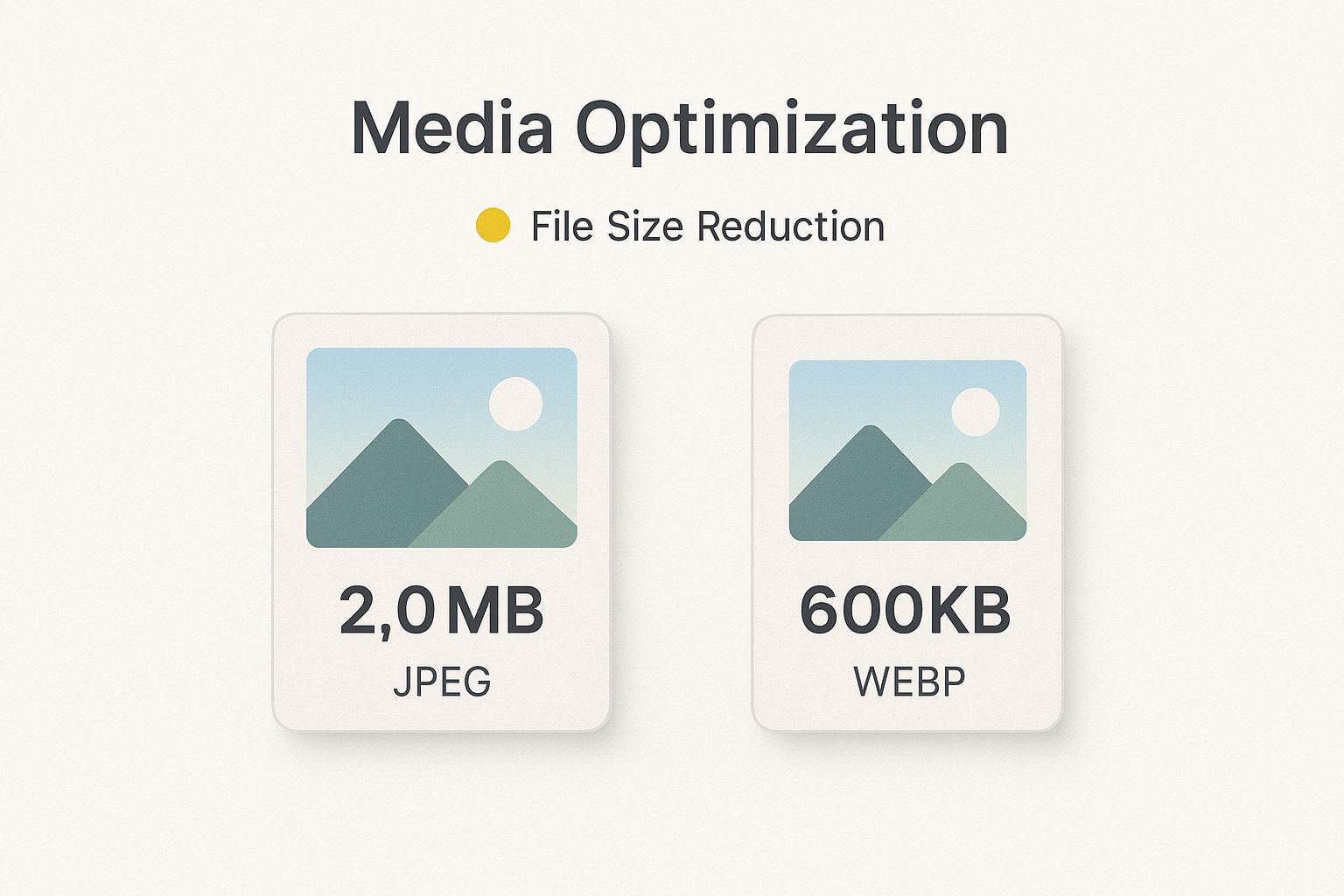
As you can see, a simple switch to a modern format like WebP can shrink an image's file size by over 70%. That’s a massive win for your load times.
Implementing Smart Loading Strategies
Beyond just file types and compression, how your media loads is just as critical. Forcing a visitor’s browser to download every single image the moment they land on a page is a recipe for disaster, especially on a spotty mobile connection. That's where smart loading techniques come in.
Lazy Loading Your Media
Lazy loading is a brilliant trick that tells the browser not to load images or videos that are "below the fold." Instead of grabbing everything at once, it only loads an asset right before the user is about to scroll it into view.
This simple change makes a huge difference in initial page load time and saves bandwidth for visitors who might not even scroll all the way down your page.
Think of lazy loading like a just-in-time inventory system for your website. You only request and deliver the assets a user needs, precisely when they need them, which makes the entire experience feel faster and more efficient.
Responsive Images for Every Device
That huge, beautiful 4K hero image might look incredible on a big desktop monitor, but trying to cram that same massive file onto a tiny smartphone screen is a colossal waste of data and time. Responsive images fix this.
By using the srcset attribute in your HTML <img> tag, you can provide the browser with a whole set of different-sized versions of an image. The browser then gets to pick the most appropriate one based on the user's screen size. A phone gets a small, optimized image, while a desktop gets the full high-resolution version. Everyone wins.
This one practice alone can dramatically improve your Core Web Vitals, especially the Largest Contentful Paint (LCP), which is a major factor in how Google perceives your site's performance.
Leveraging Caching and Content Delivery Networks
Once you've tightened up your images and media, the next big performance boosts come from two workhorses of the web: caching and Content Delivery Networks (CDNs). Think of these as your website's personal express lane. They work in tandem to slash your server's workload and shrink the physical distance data has to travel to reach your visitors.
Without them, every single visitor forces your server to build the entire page from scratch, every single time. It's like a barista grinding fresh beans and steaming milk for every single latte, even for the regular who orders the same exact drink every morning. Caching and CDNs introduce a much smarter, faster way to operate.
The Magic of Caching Explained
At its heart, caching is just a simple process of storing copies of your website's files in a temporary, easy-to-reach spot. When someone comes back to your site, their browser can grab these saved files from the local cache instead of having to request them all over again from your server. For repeat visitors, this is a game-changer.
The first time someone visits, their browser downloads everything—your logo, your stylesheet, your custom fonts. With browser caching turned on, you're telling the browser to hang onto those files for a while. The next time they visit, the page practically snaps into view because the heaviest assets are already on their device.
Caching is like leaving a spare key with a trusted neighbor. Instead of driving all the way home every time you need to get inside, you can just grab the copy that’s right next door. It saves a ton of time and effort.
Most modern platforms, like WordPress, have fantastic caching plugins that make this incredibly easy to implement. With a few clicks, you can set rules for how long different files should be stored, giving your site an instant speed boost for anyone who comes back for more.
How a CDN Brings Your Site Closer to Everyone
While caching is incredible for returning visitors, a Content Delivery Network (CDN) speeds things up for everyone, especially people who are geographically far from your primary server. A CDN is a massive, globally distributed network of servers that holds copies of your site’s static files—like images, CSS, and JavaScript.
Let's say your web server is located in Austin, Texas. When a user from Tokyo tries to visit your site, their request has to travel halfway around the world to Austin and then all the way back. That physical distance, known as latency, creates a very noticeable delay.
A CDN solves this by placing copies of your site on servers all over the globe, in what are called Points of Presence (PoPs). Now, when that user from Tokyo visits, they don’t connect to the server in Austin. Instead, they connect to a much closer server in Japan, dramatically cutting down the data's travel time. This simple shift can reduce latency from hundreds of milliseconds to just a few, creating a night-and-day difference in how fast the site feels.
To clarify the distinct roles these two strategies play, let's break down their functions and benefits.
Comparing Caching and CDN Impact
This table illustrates the different roles caching and CDNs play in accelerating website performance and their primary benefits.
| Strategy | Primary Function | Main Benefit |
|---|---|---|
| Caching | Stores static files locally on the user's device or in a server cache. | Dramatically speeds up loading for repeat visitors by reducing server requests. |
| CDN | Distributes copies of static files across a global network of servers. | Reduces latency for all users, regardless of location, by serving content from the nearest server. |
As you can see, they solve different problems but work together to create a comprehensively faster experience.
Setting up a CDN is far less intimidating than it sounds. Services like Cloudflare or Bunny CDN offer free or very affordable plans that you can activate with a simple configuration change. For most site owners, this is one of the single most effective steps you can take to improve your site's global speed. Combining a smart caching strategy with a robust CDN is the one-two punch that transforms a sluggish website into a high-performance machine.
Streamlining Your Website's Code and Scripts
Now that your media assets are lean and mean, it’s time to pop the hood and tune up your website’s engine—the code itself. Inefficient code and messy scripts are the silent speed killers. They add invisible weight that forces a visitor’s browser to work way harder than it should, leading to those frustrating loading delays we all hate.
You don’t need to be a senior developer to make a huge difference here. It's really about a few smart cleanup strategies that make your website's files leaner and more efficient. By trimming the fat from your HTML, CSS, and JavaScript, you can slash the time it takes for your pages to appear and become interactive.
The Power of Minification
One of the easiest wins in code optimization is minification. Think of it as a digital spring cleaning for your code files.
Your code is full of characters that are only there to make it readable for humans—things like extra spaces, developer comments, and line breaks. They're essential for the person writing the code, but a web browser doesn’t need any of that to do its job.
Minification is an automated process that strips out all those unnecessary characters. It takes a perfectly readable CSS file like this:
/* Main Button Styles */
.main-button {
background-color: #007bff;
color: #ffffff;
padding: 10px 20px;
}
And squishes it into a single, compact line that's unreadable to us but perfectly understood by a browser:
.main-button{background-color:#007bff;color:#ffffff;padding:10px 20px;}
The end result is a much smaller file that downloads faster. The savings on one file might seem tiny, but when you multiply that across every CSS and JavaScript file on your site, the impact on your overall load time becomes significant.
Minification is like vacuum-sealing your clothes for a trip. You aren't changing the clothes, just removing all the useless air so they fit into a smaller suitcase. This makes the data's journey to the user much lighter and faster.
Taming Render-Blocking Resources
Minification is a great start, but the real performance boosts come from tackling what we call render-blocking resources. These are CSS or JavaScript files that the browser must download and process before it can show anything else on the page.
Imagine you're trying to read a book, but you’re forced to stop and read every single footnote before you’re allowed to turn the page. That's exactly what a render-blocking script does to a browser. It freezes the whole process, leaving your visitor staring at a blank white screen. It’s a terrible user experience.
This is where you need to get smart about what loads when. Identifying and deferring these "non-critical" scripts is one of the most impactful skills you can learn to speed up your site.
Deferring and Asynchronously Loading Scripts
The solution is to give the browser instructions on what's important now and what can wait. We do this with two simple attributes you can add to your <script> tags: defer and async.
- Defer: This tells the browser to download the script in the background while it keeps building the page. The script will only run after the main HTML is fully loaded. This is perfect for anything not needed for the initial view, like analytics trackers or social media widgets.
- Async: This also downloads the script in the background without blocking the page. However, it will execute the moment it finishes downloading, which could interrupt the page rendering if it happens at the wrong time. It’s best for truly independent scripts, like some third-party ads that don't depend on anything else.
One of the biggest culprits here is render-blocking JavaScript, often from third-party plugins or old marketing tools. Google's latest speed recommendations heavily focus on deferring these scripts, a change that can lead to double-digit improvements in your Core Web Vitals scores. If you want to dive deeper, you can explore this analysis of Google’s speed metrics and why they matter so much now.
By strategically using defer on non-essential scripts, you let the most important visual content load almost instantly. This drastically improves the perceived load time, which is often more important than the final technical load time. Visitors feel like your site is lightning-fast because they can see and interact with it right away—and that's the win you're looking for.
Choose the Right Hosting (It’s Your Speed Foundation)
Every optimization trick in the book can be completely torpedoed by a slow, unstable foundation. That foundation is your web hosting. No amount of image compression or code cleanup can fix a server that's struggling to keep up. This is why picking the right hosting plan is one of the very first things you need to get right.
It's easy to get lost in the marketing noise from hosting providers, with their flashy promises of "unlimited" everything. The reality is, the type of hosting you choose has a direct and massive impact on your site's performance. The main difference comes down to how server resources—like processing power and memory—are shared.
Let's cut through the jargon.
- Shared Hosting: Think of this as living in a giant, crowded apartment building. You share all the utilities (server resources) with hundreds, sometimes thousands, of other websites. If your neighbor decides to throw a massive party (gets a huge traffic spike), the lights might dim for everyone. Your site slows down. It’s cheap, but you pay for it with unpredictable performance.
- VPS (Virtual Private Server) Hosting: This is like upgrading to a townhouse. You still share the same property as others, but you have your own dedicated, walled-off space and resources. A traffic spike on another site won't directly touch yours. It strikes a fantastic balance between reliable performance and reasonable cost.
- Dedicated Hosting: Now you own a single-family home. The entire server and every last drop of its resources belong to you and you alone. This gives you the best possible performance and security, but it comes at a much higher price.
For most growing businesses, a VPS is the sweet spot. It provides a stable, predictable environment without the hefty price tag of a dedicated server. If you're weighing your options, checking out a list of the top 10 website hosting services can give you a solid starting point.
The One Metric That Exposes a Slow Host
When you're comparing hosts, there's one metric that cuts through the marketing fluff: Time to First Byte (TTFB).
TTFB measures how long it takes for a user's browser to receive the very first piece of data from your server after they request your page. A slow TTFB means your server itself is sluggish. No amount of on-page optimization can fix that initial delay. It's a dead giveaway of a slow host.
Squeeze More Speed from Your Server
Once you've got a solid hosting plan, there are a couple of server-side tweaks you can make for even bigger speed gains. These are usually just simple settings you can flip on in your hosting control panel.
First up, make sure Gzip compression is enabled. Gzip works by compressing your website's files (like HTML, CSS, and JavaScript) into a much smaller, zipped package before sending them over the internet. The user's browser then quickly unzips them. This simple step can shrink file sizes by up to 70%, which dramatically cuts down download times.
Think of Gzip compression like vacuum-sealing your files for shipping. They take up way less space, travel faster across the network, and are easily unpacked on arrival. It's one of the easiest and most impactful optimizations you can make.
Second, always use the latest stable version of PHP. PHP is the scripting language that powers a massive chunk of the web, including WordPress. Each new version comes with serious performance and security upgrades. Just moving from an old version like PHP 7.4 to a modern one can make your site's backend code execute significantly faster, which directly improves your TTFB.
For anyone moving to WordPress, ensuring the server environment is modern and well-maintained is an absolute must-do from day one.
Answering Your Top Website Speed Questions
Even with a clear roadmap, questions always come up when you start digging into website speed optimization. Let's tackle some of the common hurdles and misconceptions I hear from clients all the time. The goal here is to give you direct, practical answers that help you make better decisions without getting tangled in technical weeds.
Think of this as your go-to guide for those "but what about…" moments that can stall your progress. We'll cover everything from decoding test scores to the truth about website builders.
What Is a Good PageSpeed Insights Score?
It’s a classic trap: chasing that perfect 100 on Google's PageSpeed Insights. While it’s tempting, hitting that number is more of a vanity metric than a smart business goal. Honestly, it's often a massive waste of time and money for diminishing returns.
A much more realistic and valuable target is getting your score into the green, which means 90 or above.
The real prize isn't the score itself, but what it represents. You should be laser-focused on the Core Web Vitals metrics within the report, like Largest Contentful Paint (LCP) and Interaction to Next Paint (INP). These are the numbers that directly measure the actual experience your visitors have on your site. If those user-centric metrics look good, both your visitors and Google will be happy—whether your final score is a 92 or a 99.
A high PageSpeed score is a great indicator, but it's not the ultimate goal. A fast, smooth user experience is. Always prioritize real-world performance over a perfect number on a report.
How Can I Accurately Test My Website Speed?
Relying on a single tool is like trying to understand a city by looking at just one street. You only get a tiny piece of the story. To get a complete, accurate picture of your site's performance, you need a combination of tools that measure different aspects of speed.
Here’s the testing toolkit I recommend and use myself:
- Google PageSpeed Insights: This one is non-negotiable. It’s the best way to see how your site stacks up against the Core Web Vitals that Google actually uses as a ranking factor.
- GTmetrix: I love this tool for its incredibly detailed "waterfall" chart. This visual breaks down every single file request your page makes, showing you exactly which images, scripts, or fonts are creating bottlenecks.
- WebPageTest: When you need a deeper dive, this tool is fantastic. It lets you simulate tests from different locations and on various connection speeds, which is crucial for understanding how your site performs for a global audience.
A quick pro tip: always run your tests multiple times to get an average reading, as network conditions can cause results to fluctuate. And don't just test your homepage! Your most important product pages, blog posts, and landing pages need just as much attention.
Will a Website Builder Make My Site Slow?
This is a big one. The short answer is: not necessarily, but they make it incredibly easy to build a slow website if you aren't careful. Platforms like Wix, Squarespace, or Shopify can be perfectly fast, but only if you approach building with a performance-first mindset.
The danger with these builders is how simple they make it to add features that bloat your pages. That heavy video background, a dozen third-party app integrations, and those flashy animations are all common culprits. Every single one adds weight and complexity, chipping away at your load time.
To keep a site built on one of these platforms fast, you have to be disciplined. For a deeper look at this, our guide on technical SEO best practices offers more insight into maintaining a lean site structure. The key is to start with a lightweight theme, be ruthless about which apps you install, and always optimize your images before you upload them. You can build a speedy site on any platform as long as you prioritize performance from day one.
At Gidds Media, we build websites that are not just beautiful, but incredibly fast and optimized for conversions. If you're ready to turn your website into a 24/7 salesperson that delivers real results, let's talk. Get your free, no-pressure SEO audit today!