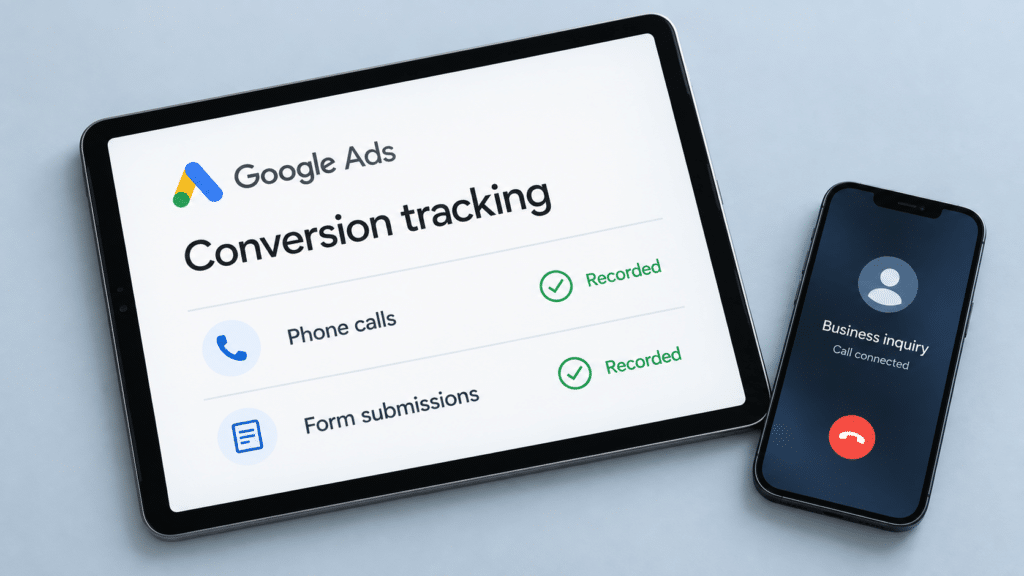
If you run Google Ads for a service business, your best leads probably arrive as phone calls or form submissions. Google Ads conversion tracking is how you find out which ads, keywords, and campaigns actually produced them.
Without it, you only see clicks and spend. With it, you see results. This guide shows you how to track both calls and forms, in plain language, with the mistakes to avoid along the way.
How Google Ads Conversion Tracking Works for Calls and Forms
To track form submissions, you create a goal in Google Ads and add Google’s tag to your website. The tag records when someone reaches a page that only appears after they submit your form, such as a thank-you page. Google’s setup guide walks through this.
To track phone calls, you pick one of the five call-tracking methods in Google’s phone call tracking guide. The right choice depends on whether people call from your ad or from the number on your website.
Here is the quick version:
- Forms: Create a goal, install the Google tag, and track the thank-you page.
- Calls: Choose a call method, set the shortest call length you want to count, and turn on call reporting.
- Settings: Count each lead once, and only let real leads guide your bidding.
- Testing: Run a test and confirm the status says “Recording” before you trust the numbers.
What Is a Conversion, and Why Does It Matter?
A conversion is any action that has value for your business. For most local and service companies, that means a phone call or a completed contact form.
Google explains that tracking calls helps you see which keywords, ads, and campaigns bring in the most valuable calls. It also helps you judge your return on ad spend and use automated bidding that aims for your goals.
In short, tracking tells you where to spend more and where to stop wasting money.
Which Call Tracking Method Should You Choose?
Google offers five ways to track phone call conversions. This table shows what each one records and when it fits.
| Method | What it records | Best when | The catch |
|---|---|---|---|
| Calls from your ads | Calls made straight from a call ad or call asset | People tend to call right from the ad | Uses Google forwarding numbers |
| Calls to your website number | Calls from people who clicked your ad, then called the number on your site | Visitors read your site before calling | Needs the Google tag plus an extra code snippet |
| Taps on your mobile number | Clicks on a phone number, button, or link | You want a backup signal | Records clicks, not actual calls |
| Clicks on call ads and assets | Google’s estimate of whether a meaningful call followed the click | A forwarding number isn’t an option | It is an estimate, not a confirmed call |
| Imported calls | Calls you track in another system | You only want to count calls that lead to sales | Needs a separate system to track call details |
Google forwarding numbers are not available everywhere. Check Google’s list of supported countries before you plan your setup.
How to Track Phone Calls Step by Step
Track calls made straight from your ads
This method works with call-only ads and with call or location assets. Google’s calls-from-ads guide lays out the steps:
- In Google Ads, open Goals, then Summary.
- Select + Create conversion action.
- Choose Conversions from phone calls.
- Pick Phone call lead as the category.
- Choose Calls from ads and save.
Menu names change from time to time, so follow Google’s current instructions if your screen looks different.
You also set a minimum call length. Every call that lasts at least that long counts as a conversion, and shorter calls do not. You can check real call lengths in the “Call details” report inside the Report Editor.
Track calls to the number on your website
This method follows someone who clicks your ad, lands on your site, and then calls. Google swaps in a forwarding number for those visitors so it can tie the call back to the ad.
It needs the Google tag and a special snippet for website call conversions. Google’s website call tracking guide covers the details, and you can check your setup with Tag Assistant.
Count only calls that lead to sales
If a long call is not always a good call, you can import call results from another system. For example, you can count a call only when it ends in a sale, and add the sale amount.
Google’s import call conversions page explains the requirements. It also warns that counting both an ad-call action and an imported action for the same call can count two conversions for one call.
How to Track Form Submissions Step by Step
Website tracking has two parts: a conversion action that defines what you want to measure, and the Google tag that records it. The Google Ads setup guide describes each part.
The simple way: track the thank-you page
Google calls this the fastest and easiest option. It works best for counting page loads and needs no code changes once your tags are in place.
- Open Goals, then Summary, and select + Create conversion action.
- Enter your website address and select Scan.
- Pick the category closest to your goal, such as a lead.
- Choose Automatically without code.
- Set the trigger to a page load, then match your thank-you page, for example a URL that contains “thank-you”.
- Review the settings for value, count, and conversion window, then select Done.
If you can, send each form to its own thank-you page. That keeps your results easy to read when your site has more than one form.
The flexible way: use code or Tag Manager
Choose this path if you want to track button clicks or give each lead a value. Google says code-based setup is the better fit for button clicks, dynamic values, and transaction IDs.
You can add the snippet through the Google tag or through Google Tag Manager. Google Ads even offers a button that sends suggested tags to your Tag Manager workspace.
A warning for WordPress and similar sites
Many website platforms have plugins that add Google tags for you. Google cautions that using a plugin on top of your own tag can double-count conversions, so pick one method and stick with it.
Choose Which Actions Count Toward Your Goals
Two settings decide whether your numbers help or mislead you.
Count each lead once
Google’s conversion counting guide gives a clear example. For software sales you may want to count every sale, but for leads you only want to count unique leads.
So for a contact form, choose One. That stops a visitor who reloads the thank-you page from showing up as several leads.
Separate real leads from small signals
Each conversion is either primary or secondary. Google describes primary actions as the ones used for bidding, and secondary actions as for observation only.
Google also warns that setting these wrongly can stop its automatic bidding from working well. Here is a sensible split:
- Primary: Completed forms and phone calls that last long enough to matter.
- Secondary: Phone number taps, page views, and other small signals you only want to watch.
You can read more in Google’s explanation of primary and secondary conversion actions.
Test That Everything Works
Do not wait for a real customer to find out your tracking is broken. Test it yourself.
Google Ads can launch Tag Assistant straight from your account. In the conversions table, look for a status of “Unverified” or “Tag inactive,” select Troubleshoot, and follow the guided test. After a successful test the goal shows “No recent conversions,” and it changes to “Recording” once real conversions come in.
Then run two simple checks:
- Submit your own form and confirm the thank-you page loads and the tag fires.
- Click your ad on a phone, call the number, and stay on the line past your minimum call length.
If something fails, Google’s guide suggests checking where the tag sits and whether it fires when the action happens. A web developer can help if the problem persists.
Connect Your Leads to Real Sales
A form submission is not a sale. Many businesses close deals later, by phone, email, or in person.
Google offers a feature called enhanced conversions for leads. Your site shares the contact details a person typed into your form with Google in a scrambled, privacy-protected format. Later, you upload which leads became customers, and Google matches them back to the ad.
For businesses starting out, Google says it recommends this approach over older offline imports. You can read why in its offline conversion imports guide.
Common Mistakes to Avoid
- Treating phone number taps as calls. Google notes that this method records clicks only, not actual phone calls.
- Tracking the form page instead of the thank-you page. You will count people who only looked at the form.
- Counting every lead. Reloaded pages and repeat clicks inflate your numbers.
- Doubling up tags. A plugin plus a manual tag can record one lead twice.
- Making everything primary. Small signals can steer your bidding toward the wrong people.
- Skipping the test. A broken tag can run for weeks before anyone notices.
How Long Does Setup Take, and What Does It Cost?
A basic form goal using a thank-you page is the quickest setup. Calls take a bit more planning because you have to choose a method and, for some, install extra code.
The tools in this guide are built into Google Ads. Costs usually come from your own time, a developer if your site needs custom code, or separate software if you import calls from another system.
If you link Google Analytics to Google Ads, Google notes that options can take 24 to 48 hours to appear after you link or mark an event. After that, how fast you see data depends on how often people call or submit forms.
Keep Your Tracking Healthy Over Time
Tracking is not a one-time task. Websites change, plugins update, and phone numbers move.
Build a short routine:
- Check the status column in your conversions table regularly.
- Re-test after a website redesign, a new plugin, or a new form.
- Review your call lengths and adjust the minimum if it no longer fits.
- Compare your reported leads with the leads your team actually received.
Privacy and Consent: What to Know
Google asks advertisers to give people clear information about the data they collect. You also need to get consent where the law or Google’s policies require it, including its EU user consent policy.
Rules differ by country, and this guide is not legal advice. Ask a qualified professional what applies to your business and your visitors.
What to Do With Your Tracking Data
Once your numbers are reliable, you can start improving results. Look for the keywords and campaigns that bring real calls and forms, and move budget toward them.
You can also build lists of past visitors who did not convert and show them follow-up ads. And if you want more ways to bring in better-quality leads, tracking gives you the proof of what is working.
When to Get Expert Help
Many businesses can set up a form goal on their own. Calls, double-counting problems, and sales matching are where people tend to get stuck.
If you would rather hand this off, our Google Ads management services include getting your tracking right so every decision is based on real results. You can book a consultation to talk through your setup, or contact our team with questions.
Frequently Asked Questions
Can I track form submissions without writing code?
Yes. Google’s URL-based method detects a page load, such as your thank-you page, without code changes once your tags are in place. You need code only for things like button clicks or custom values.
Is a phone number tap the same as a phone call?
No. Google states that tracking taps on a mobile number records clicks, not the calls themselves. Use a call-tracking method that records actual calls if you need confirmation.
Can I track calls without a Google forwarding number?
Partly. You can track clicks on call ads and assets, but Google bases those on an estimate of whether a meaningful call happened. Confirmed call tracking from ads or your website needs forwarding numbers.
Why do my conversion numbers look too high?
The usual causes are a count setting of “Every” on leads, a tag on the wrong page, or two tags recording the same action. Check those three first.
How do I know my tracking works?
Look at the status in your conversions table and run a test with Tag Assistant. A healthy goal shows “Recording” once real conversions arrive.
Final Thoughts
Good tracking turns Google Ads from a guessing game into a clear picture of what brings in customers. Start with one form goal and one call method, test both, and build from there.
If you want a team to set it up and keep it running, learn more about us at Gidds Media.