Getting your first WordPress site live isn't some monumental task reserved for developers. Honestly, the whole thing boils down to a few key moves: grabbing a domain name and hosting, getting the software installed, picking a design you like, and then filling it with your content. You can knock this out in a few hours, no code required. It’s way more accessible than most people think.
Choosing Your Domain and Hosting
Before anyone can visit your new website, it needs two things: an address on the internet (that’s your domain name) and a place to live (that’s your web hosting). Think of it like real estate. The domain is your street address, and the hosting is the plot of land you’re building your house on. Getting these two pieces right is the foundation for everything that comes next.
Secure a Memorable Domain Name
Your domain name is so much more than a URL—it’s the digital handshake for your brand. It needs to be memorable, easy to type, and ideally, give a hint about what you do. A local spot called Austin Bread Co. is going to have a much easier time with austinbreadco.com than some long, clunky, or forgettable alternative.
Nailing down this unique online address is a critical first step. It's worth spending a little time thinking about how to find your domain name because this choice sticks with you and impacts your marketing down the road.
Select the Right Hosting Plan
Web hosting is the engine that keeps your website online and accessible to visitors. It's where all your files, images, and content are stored. But not all hosting is created equal. The needs of a simple blog are worlds away from an e-commerce store expecting a flood of holiday traffic.
This diagram gives you a simple visual of how it all connects.
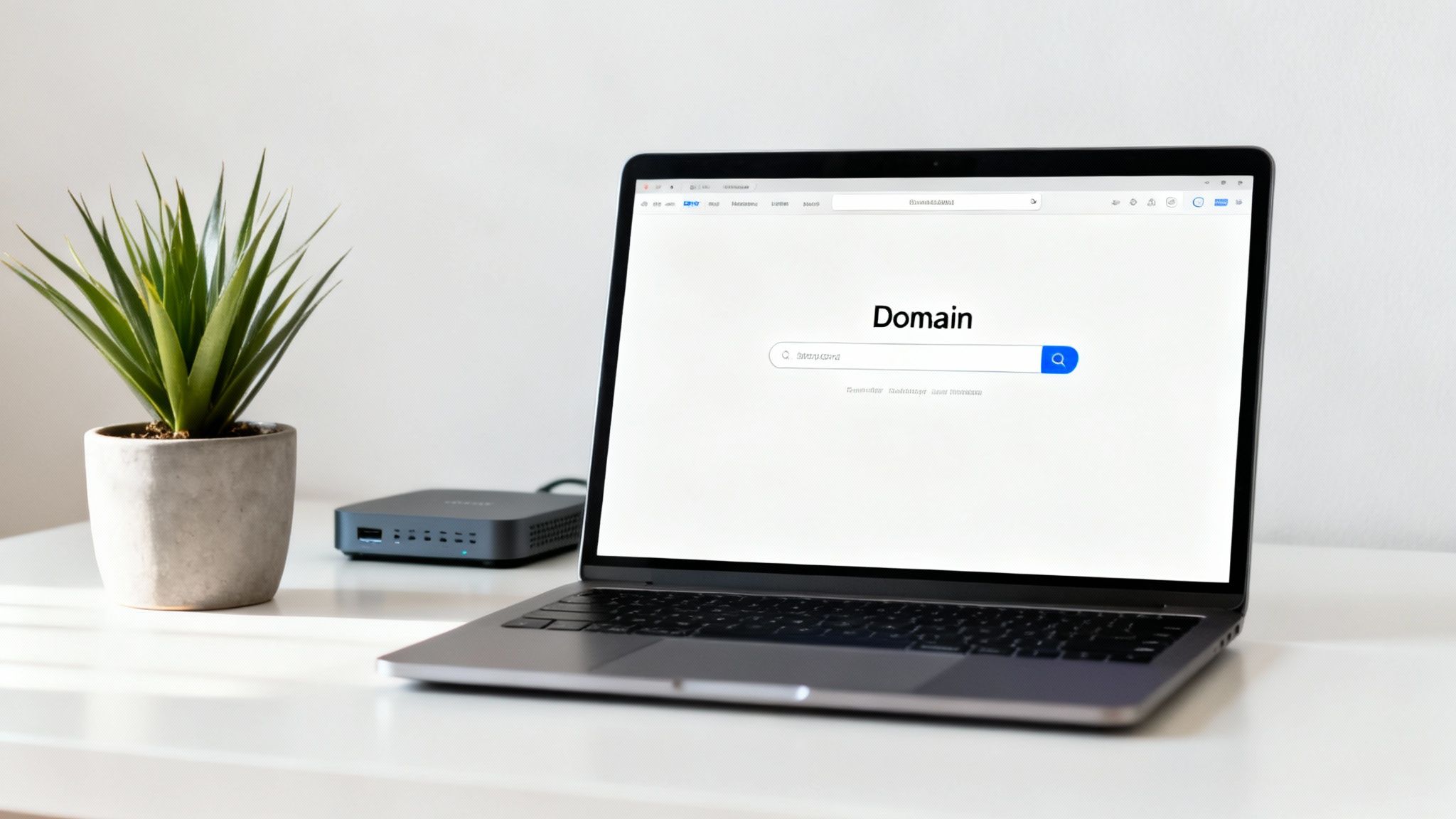
When someone types your domain into their browser, the hosting server is what sends them your website. That’s why choosing a host that is fast and reliable is so important.
Picking the right hosting plan can feel overwhelming with all the options out there. This table breaks down the most common types to help you figure out what makes the most sense for your project, budget, and comfort level with tech.
Choosing the Right Hosting for Your WordPress Site
| Hosting Type | Best For | Average Cost | Technical Skill Required |
|---|---|---|---|
| Shared Hosting | New websites, blogs, and small projects with low traffic. The most budget-friendly starting point. | $3 – $15 / month | Beginner |
| VPS Hosting | Growing businesses, online stores, and sites that have outgrown shared hosting and need more power. | $20 – $80 / month | Intermediate |
| Managed WordPress | Anyone who wants a hands-off, high-performance experience where security, updates, and backups are handled for them. | $25 – $150+ / month | Beginner |
Ultimately, the goal is to find a hosting plan that matches your current needs but gives you room to grow. Don't overpay for power you don't need, but don't hamstring your site with a cheap plan that can't keep up as you become more successful.
A few key types of hosting you’ll run into:
- Shared Hosting: This is the most common and affordable option, perfect for brand-new websites that don't have a lot of visitors yet. You're essentially sharing server space and resources with other websites, which keeps the cost down.
- VPS (Virtual Private Server) Hosting: This is the next logical step up. You still share a physical server, but you get your own dedicated slice of its resources. It’s a great fit for businesses that are starting to see real traffic and need more stability and control.
- Managed WordPress Hosting: Think of this as the white-glove service of web hosting. The hosting company handles all the technical heavy lifting—security scans, daily backups, software updates, you name it. It's a fantastic choice if you'd rather focus on your business instead of worrying about site maintenance. If you're curious about the specifics, we have a whole guide on the benefits of moving to a managed WordPress environment you should check out: https://giddsmedia.com/thinking-about-moving-to-wordpress/
Your foundation is non-negotiable. A slow or unreliable host will kill all your hard work on SEO and content before you even get started. Look for providers that guarantee at least 99.9% uptime, have responsive customer support, and offer easy ways to upgrade your plan as your site grows.
Choosing WordPress in the first place is a smart move. The platform powers an incredible 43.4% of all websites on the internet for a reason. It's trusted by everyone from solo bloggers to massive brands like Nike and The New York Times, which just goes to show how flexible and scalable it really is.
Getting WordPress Installed and Set Up
Now that you've got your domain name and hosting sorted, it's time to lay the foundation for your new website. For anyone figuring out how to launch a WordPress site today, this part is refreshingly simple. Gone are the days of manually uploading files and messing with databases; most hosts now offer a straightforward “one-click” installation right from your account dashboard.
This automated process takes care of all the technical heavy lifting for you. It creates the necessary database, puts the core WordPress files onto your server, and connects everything together. All you typically have to do is choose a site title, create an admin username with a strong password, and hit the install button. In just a few minutes, you'll have a live WordPress site ready for your first login.
First Look Inside the Dashboard
Once you log in, you’ll land on the WordPress dashboard. This is your command center for everything related to your site. Before you dive into choosing a theme or writing content, there are a few housekeeping tasks you need to tackle. Think of it as setting the ground rules for your site to ensure it runs smoothly and gets noticed by search engines down the road.
Here’s a glimpse of the classic WordPress dashboard, the control panel for your entire operation.
From this screen, you have one-click access to creating content, managing your design, adding plugins, and handling user settings. It's where all the magic happens.
These initial tweaks might feel small, but they make a massive difference. Getting them right from day one saves you from technical headaches and helps Google understand what your site is all about.
Configuring Your Core Settings
Your first stop should be the Settings menu on the left-hand sidebar. A couple of things in here need your immediate attention.
- General Settings: Make sure your Site Title and Tagline are correct. This is often the first thing people and search engines see. Double-check that your timezone is set correctly, too—this ensures any posts you schedule will publish at the right time.
- Permalinks: This is probably the most critical setting to change right away. By default, WordPress uses a messy URL structure. You want to switch this to "Post name." This creates clean, readable, and SEO-friendly URLs like
yourdomain.com/your-amazing-blog-postinstead of something cryptic likeyourdomain.com/?p=123.
Making the permalink change is a non-negotiable first step. It dramatically improves your on-page SEO by including relevant keywords directly in your URLs, making them easier for both users and search engines to understand.
Finally, do a little tidying up. WordPress automatically creates a "Hello world!" blog post and a sample page. It's good practice to delete both. This gives you a completely clean slate to start building your own unique content and ensures your site looks professional from the moment it gets indexed.
Designing Your Site with a Theme and Plugins
Alright, you’ve got your domain and hosting sorted, and a fresh WordPress install is humming away. Now for the fun part: making it look and act like your website.
A new WordPress site is a blank slate. To bring it to life, you'll rely on two key components: themes and plugins. Think of a theme as the overall design, layout, and style of your site—the architecture and interior decorating. Plugins are the functional add-ons, like the security system, the contact form on the front desk, or the performance tuning under the hood.
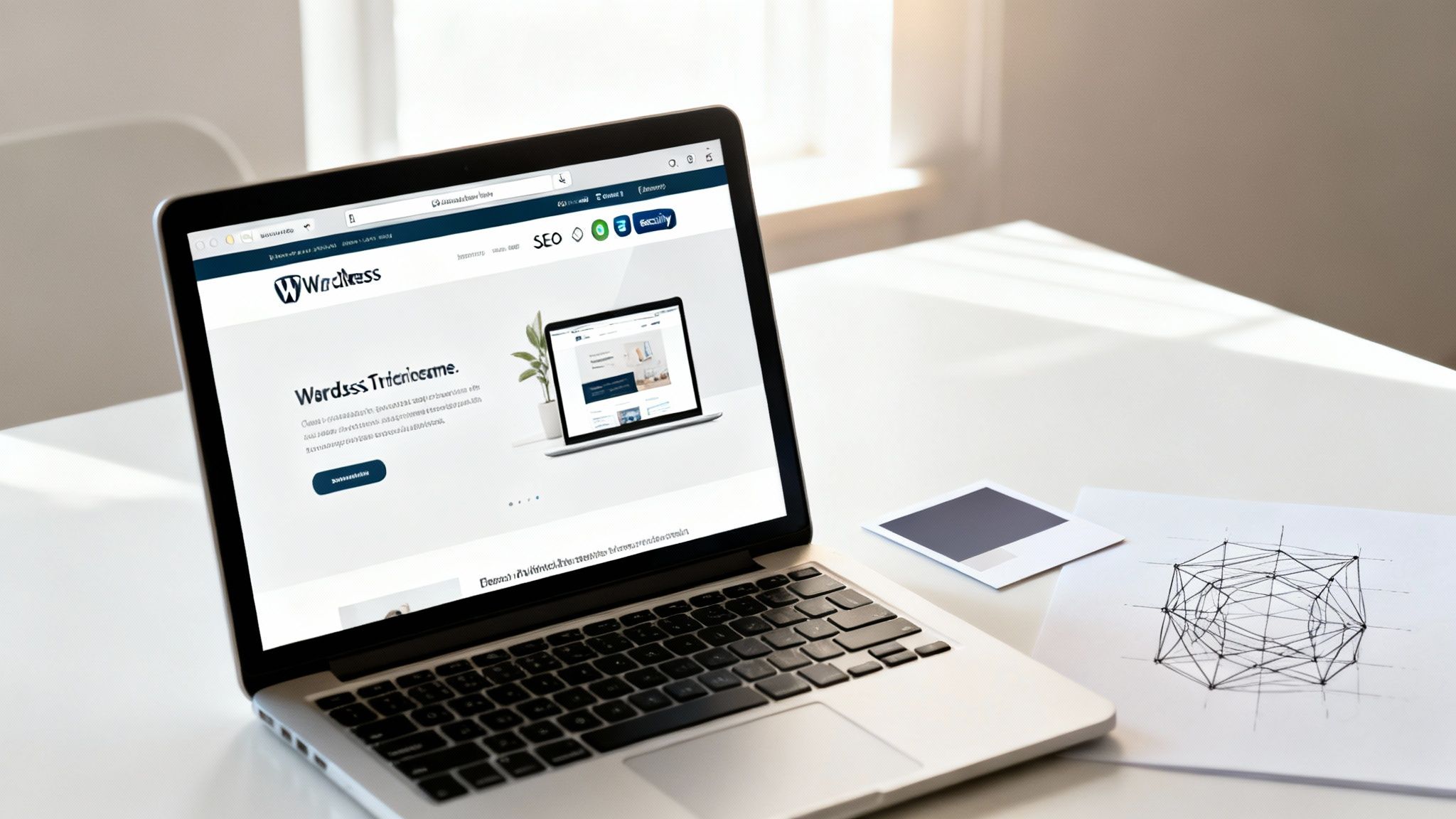
This step is where your brand's personality starts to shine through. Choosing the right theme and a lean set of plugins sets the stage for everything that follows, from user experience to how easily Google can find you.
Selecting the Perfect WordPress Theme
The theme you choose dictates the entire visual foundation of your site. It’s about more than just colors and fonts; a well-coded theme has a massive impact on your site’s loading speed, how it looks on a phone, and even its SEO potential.
The WordPress ecosystem is flooded with thousands of options, from free themes in the official directory to premium ones sold on marketplaces. So, what separates a good theme from a great one?
- Mobile Responsiveness: This isn't a feature anymore; it's a requirement. Your site absolutely must work perfectly on any device, period.
- Fast Loading Speed: A lightweight, optimized theme helps your pages load faster. Slow sites lose visitors and rank poorly in search results.
- Customization Options: You want a theme that gives you control over the important stuff—layouts, colors, fonts—without forcing you to become a programmer overnight.
To get a head start, check out a curated list of the best WordPress themes for business. Finding a solid, flexible option here can save you days of frustrating trial and error.
Adding Functionality with Essential Plugins
If your theme is the car's body and interior, plugins are the engine, GPS, and security system. They are small apps that add specific features your theme doesn't have, like a tool to optimize your content for search engines or a firewall to block hackers.
But a word of caution: it's easy to get carried away.
One of the most common rookie mistakes is going on a plugin-installing spree. Every plugin you add introduces more code, which can slow your site down. The goal is to install a handful of high-quality plugins that solve specific problems, not to collect them.
A lean, purposeful plugin stack always wins. Start with the essentials that cover performance, security, SEO, and basic user interaction.
Essential WordPress Plugin Checklist for a New Site
Instead of getting lost in the plugin directory, here's a simple checklist of must-have plugins for any new WordPress site. This core group covers the most critical functions you need from day one.
| Category | Recommended Plugin | Core Function |
|---|---|---|
| SEO | Yoast SEO or Rank Math | Helps you optimize your content for search engines with keyword analysis, sitemap generation, and readability checks. |
| Security | Wordfence Security | Protects your site from malware and brute-force attacks with a firewall and regular security scans. |
| Performance | WP Rocket or LiteSpeed Cache | Improves your site's loading speed by caching pages, compressing files, and optimizing your database. |
| Contact Forms | WPForms or Gravity Forms | Allows you to easily create and manage contact forms to capture leads and inquiries from your visitors. |
Getting these core plugins installed and configured properly creates a strong, secure, and optimized foundation. Keeping them updated is just as important—outdated plugins account for a staggering 95% of security issues. With a WordPress site being attacked every 32 minutes on average, security is something you have to take seriously from the very beginning.
Creating Your Core Pages and Content
Alright, your new WordPress site is officially live. It's looking good, but it's basically an empty digital storefront. Now comes the fun part: filling it with the essential pages and content that will actually connect with your visitors and give your site a purpose.
This all starts with building out the foundational pages. Without them, people will land on your site, get confused, and click away in seconds. Think of your Homepage, About page, and Contact page as the non-negotiable pillars of your online presence. They’re the first places people look to figure out who you are, what you offer, and how to get in touch.
Build Your Foundational Pages
Let's be clear: your homepage is probably the most important page on your entire website. It has a huge job to do. It needs to grab a visitor's attention, explain exactly what you do, and show them what to do next—all within a few seconds. It’s not just a welcome mat; it’s your site’s mission control. If you're staring at a blank page wondering where to start, we've got a detailed guide on how to create an engaging and converting homepage that will walk you through it.
Once your homepage is in a good spot, shift your focus to the About and Contact pages.
- About Page: This is your chance to tell your story. Don't just spit out a corporate timeline. Share your mission, put a face to the name by introducing your team, and explain the why behind your business. People connect with authentic stories, not buzzwords.
- Contact Page: Make it ridiculously simple for someone to reach you. Include a straightforward contact form, your business email, phone number, and a physical address if you have one. For local businesses, embedding a Google Map is a fantastic touch that builds immediate trust.
Start Your First Blog Post
With your core pages built, it's time to start creating the content that will bring people back again and again. Publishing your first blog post sends a strong signal to both visitors and search engines that your site is active and offering real value.
Pick a topic that solves a real problem or answers a common question for your ideal customer. This is your first real shot at showing off your expertise. For instance, a local bakery could write a post titled, “5 Common Mistakes When Baking Sourdough at Home.” This is genuinely helpful content that immediately positions them as an authority.
Pro Tip: Don't just hit "publish" and walk away. A quick pre-publish checklist will save you from common headaches. Always proofread for typos, make sure your images are optimized for fast loading, and double-check that every single link works as it should.
By creating a simple content plan—even if it's just a list of ten future blog topics brainstormed in a notebook—you give yourself a roadmap. This is the difference between a website that just sits there and one that actually grows. You’re turning a static online brochure into a dynamic resource that keeps people coming back for more.
Your Pre-Launch Checklist and Going Live
The design is locked in, and your core content is in place. You're just moments away from sharing your new website with the world, but hitting the launch button prematurely is a classic mistake. I've seen it happen too many times. A final, methodical review is what separates a smooth, professional launch from a frustrating one filled with easy-to-avoid errors.
Think of this as the final walkthrough before a grand opening. You need to check every room, flip every light switch, and make sure the front door actually locks. For a website, this means testing every link, proofreading every page one last time, and making sure your contact forms don't just look pretty—they actually send emails to your inbox.
Final Technical and Content Review
Before you announce your site to the world, a few technical checks are non-negotiable. First, run your site through Google's Mobile-Friendly Test. With over 50% of all web traffic coming from mobile devices, a poor mobile experience is no longer an option. It's an instant deal-breaker.
This is also a great time to evaluate your site’s speed. A slow website is a major conversion killer. To get a real sense of the stakes, check out this guide on the importance of speed and performance for your website.
Next, it's time to clean up the default WordPress clutter that just screams "amateur."
- Delete the Defaults: Get rid of the "Hello world!" post, the sample page, and the sample comment.
- Check Your Homepage: Head over to
Settings > Readingand confirm "Your homepage displays" is set to your intended static page, not your latest posts (unless it’s a blog). - Test Your Forms: Fill out and submit every single contact form on your site. Make sure you receive the email notification promptly.
This infographic lays out the essential content pillars that absolutely should be finalized and polished before you even think about going live.
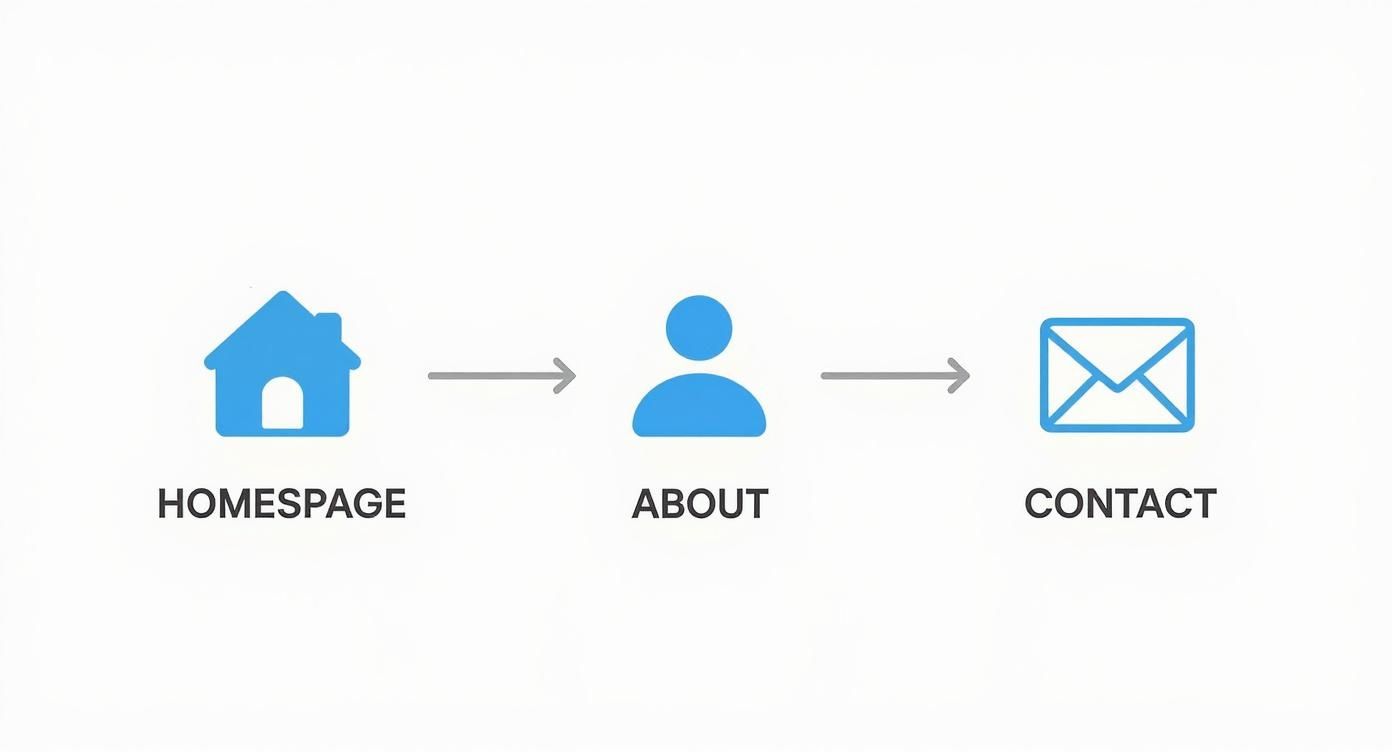
Making sure these core pages are functional and well-written provides a solid foundation for visitor trust and makes navigating your site a breeze.
Flipping the Switch to Go Live
The single most critical step when preparing to launch happens in a place most beginners overlook. During development, it's common practice to hide the site from search engines. This prevents them from indexing an unfinished, broken website. Forgetting to reverse this setting is a surprisingly common disaster.
Head over to
Settings > Reading. Find the checkbox labeled "Discourage search engines from indexing this site." Make absolutely sure this box is UNCHECKED. If it's checked, Google will completely ignore your site, and all your hard work on SEO will be for nothing.
Once you’ve saved that change, your site is officially live and visible to the world and its search engines. You've successfully learned how to launch a WordPress site. Now, your focus can shift from building the site to growing its audience. Congratulations
Common Questions About Launching a WordPress Site
Diving into a new website build always stirs up a few questions, especially if this is your first time. Let's clear the air on some of the most common things people ask before they get started. Getting these answers sorted out will help you move forward with confidence.
How Much Does It Really Cost?
While the core WordPress software is free, a few key expenses are unavoidable. Think of it like building a house—the blueprint might be free, but you still need to buy the land and materials.
At a minimum, you'll need a domain name (your address on the web), which usually runs $10-$20 per year. You'll also need web hosting (the land your site lives on), with solid starter plans available for $3-$30 a month.
Those are the only mandatory costs. Of course, you can choose to invest in premium themes or plugins for more advanced features, but you can absolutely launch a polished, professional site for well under $100 for the first year.
Can I Launch a Site Without Knowing How to Code?
Yes, one hundred percent. This is precisely why WordPress powers over 43% of all websites on the internet. It was built for people who aren't developers.
You don't need to write a single line of code. With the modern block editor (often called Gutenberg) and the sheer volume of customizable themes, you can build everything visually. If you can use a word processor and drag and drop, you can build a WordPress site. This guide is written for exactly that person.
How Long Does a Basic Website Launch Take?
Assuming you have your content ready—your text, photos, and logo—you could realistically get a simple site live in a weekend. Many people are surprised by this.
The technical part—getting your domain, hooking up hosting, and installing WordPress—is often done in less than an hour. It’s pretty streamlined these days.
Most of your time will go into the creative side: customizing your theme, arranging your content, and building out your essential pages like your Homepage, About, and Contact. For a basic site, plan on a few hours to a full day of focused effort.
What Are the First Things to Do After Going Live?
Hitting "launch" is a huge milestone, but the work doesn't stop there. A few post-launch tasks are critical for setting your site up for long-term success.
Here's your immediate checklist:
- Submit Your Sitemap: The moment you're live, submit your sitemap to Google Search Console. This is like giving Google a map to your new site so it can start indexing your pages.
- Install Analytics: Get Google Analytics running right away. You can't improve what you don't measure, and this will start tracking visitor data from day one.
- Establish a Backup Plan: Don't skip this. Set up a regular backup solution. It’s your safety net if anything ever goes wrong, and it’s non-negotiable for peace of mind.
- Keep Everything Updated: Make it a habit to regularly update your WordPress core software, themes, and plugins. This is your first line of defense against security threats and keeps your site running smoothly.
Ready to build a website that works as hard as you do? At Gidds Media, we specialize in creating custom WordPress sites that drive real business growth. Get your free, no-pressure SEO audit today!